Live presentation graphics. Put the audience on screen.
A great question deserves more than a place in the sidebar. Put it into the broadcast. Show the room’s response to a poll. Build a word cloud together. Your producer chooses what appears and when.
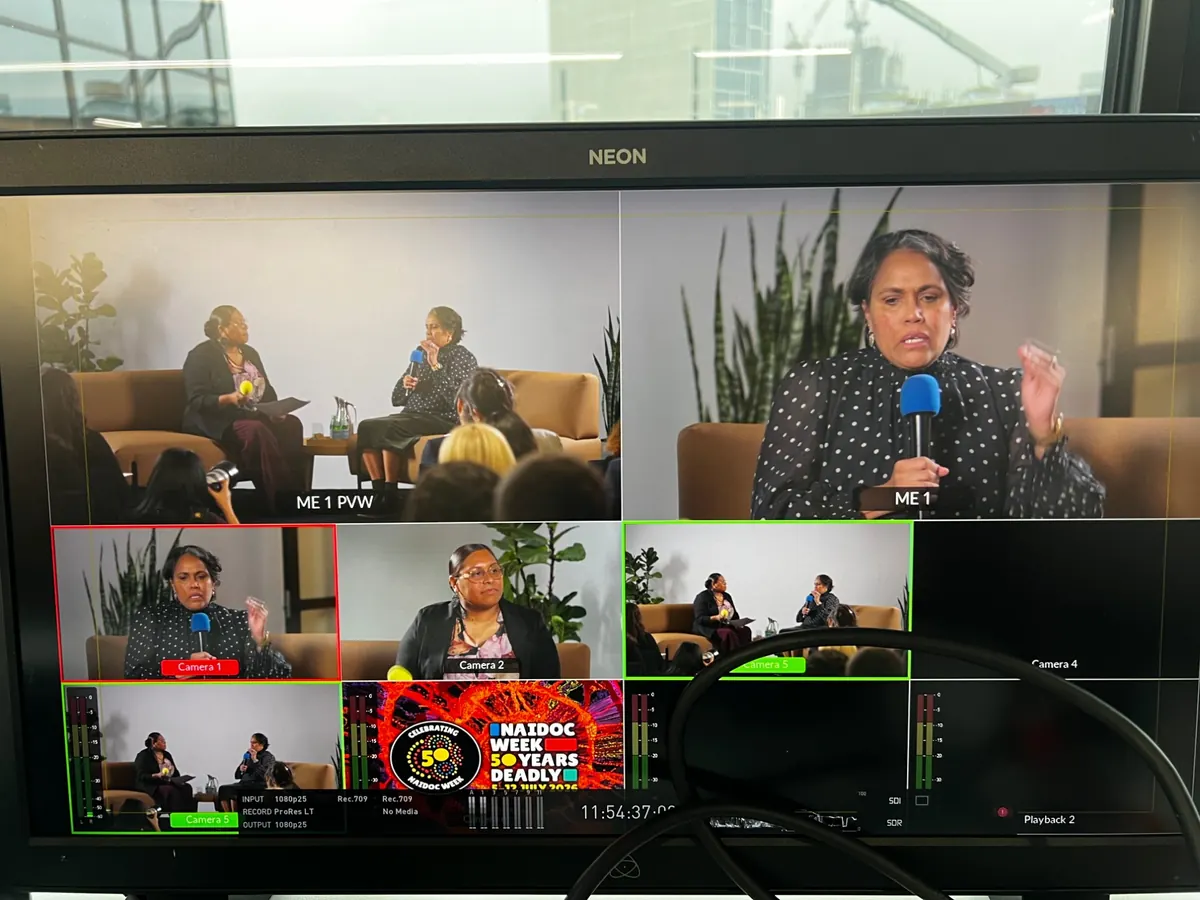
PRESENTATION GRAPHICSSlides, names and results, cleanly on screen.JPC multi-camera production · NAIDOC Week panelSee what your viewers experience↗
Some of our live stream clients
PRODUCED BY THE JASPER PICTURE COMPANY PTY LTD
One clean display. Chosen by the producer.
The presentation view is separate from the viewer and producer pages. It gives the graphics operator a focused output to bring into the show, without exposing backstage controls.
01
One link for the graphics computer
Open the event’s Presentation tab in Producer mode. Copy the presentation link and open it on the graphics computer. It shows the selected contribution, without the event page, chat, forms or producer controls. Use the same output for a broadcast source or a venue screen.
02
Preview it. Then put it on screen.
Choose an approved question, a launched poll, a word cloud or a holding message. Check the producer preview, then select Put on screen to update the presentation link. Selecting an item in the preview does not change the output. Clear output removes it when the moment has passed.
03
Over the video for online viewers too
The same approved question can also appear over the video on the event page, for every online viewer, alongside short announcements. Online viewers watch a little behind the room, so when your producer is in the venue the question waits for that delay and appears as it’s read out.
04
You decide when results are revealed
Launch a poll when the host asks the question. Keep the results hidden while viewers answer, then select Reveal results when you are ready. Word cloud contributions also need moderator approval. Only approved words appear, and only after results are revealed. Closing an activity stops new responses; its results can stay on screen.
05
Approved video and audio, ready for production
Viewers can submit a recording where enabled. Your moderator reviews it before approval. Production can then open or download the original, cue it in the agreed playback setup and bring it into the stream. The presentation view also offers manual playback controls for a selected recording. Approval never starts a recording automatically.
06
Let the room take part by phone
The presentation link can include the event’s QR code with an invitation to participate. People watching a venue screen can scan it to reach that event’s questions and activities. The graphics operator can hide the QR code when the layout needs the full frame. Event access rules still apply.
07
Rehearse the complete path to air
JPC checks the graphics computer’s access, picture size, readability and audio routing with your operator. A compatible browser capture or screen output brings the presentation into the production chain. The producer selects the content; the vision operator takes that source to air. That final cue stays with the crew.
A GOOD PLACE TO START
What to include in your brief.
Who approves contributions, selects graphics and takes them to air
Graphics computer sign-in and event access
Browser capture or screen output, resolution and audio routing
QR code placement and a phone participation test
A rehearsal of reveal, clear, playback and connection recovery
Does this automatically connect to NewBlue or Mitti?+
The presentation link provides a clean browser display. We confirm a compatible capture or routing method with your graphics operator for NewBlue, Mitti or the rest of your production setup. Approved recordings can also be downloaded and cued for playback.
Can we show it on a venue screen?+
Yes, with a suitable computer output and venue display connection. The route, resolution and readable type size are part of the production plan.
Can a viewer select what goes on screen?+
The producer controls the presentation selection. Viewers submit questions and activity responses through the event page. Moderation and results controls determine what is available to show.
How quickly does the presentation update?+
The display checks for changes about every two seconds while connected. Allow for the separate delay in your live video stream when the host introduces an activity.
What happens if the presentation connection drops?+
After a connection failure is detected, the output clears rather than continuing to display an old selection. It retries automatically and restores the latest approved output when the connection returns. The vision operator can cut to another source while it reconnects.
Is the presentation link the live video feed?+
It is a graphics and contribution source that your production team brings into the broadcast. The finished live stream reaches viewers through the event’s configured video player.
PRICE GUIDE
Know your budget before you book.
One cameraA$3,025–$3,850incl. GST · A$2,750–$3,500 ex. GST
Two camerasA$3,850–$6,600incl. GST · A$3,500–$6,000 ex. GST
Send us your date and a rough brief. We’ll help with the rest. Every production is backed by the JPC guarantee: it stays live or it’s free. How we keep it live