VIDEO QUESTIONS · AUDIO QUESTIONS · LIVE Q&A

Interactive live streaming.
Give your audience a voice.

Your audience records a video or audio question. Your moderator reviews and approves it. Production brings the selected recording into the live stream, so the room hears directly from the person asking.

Live stream production from A$3,025 incl. GSTA$2,750 ex. GST · Single-camera productionSee pricing and inclusions ↓
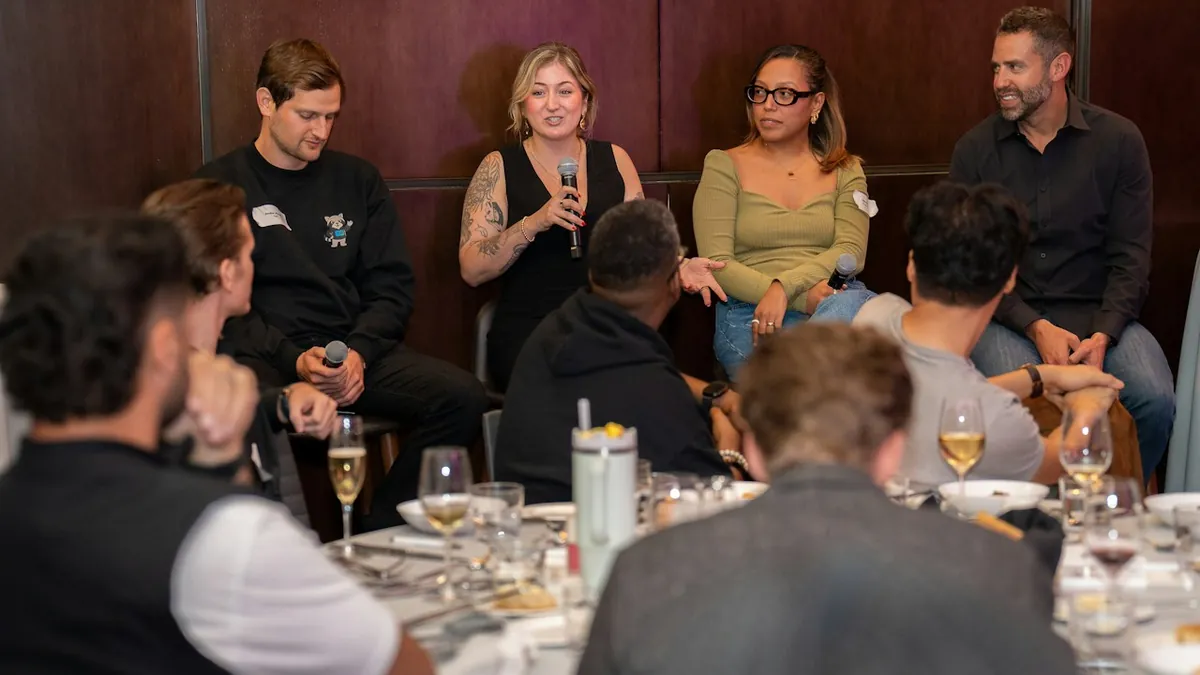
Speakers in conversation during a panel discussion
From watching to taking part.Town halls, member meetings, conferences and training.

VIDEO & AUDIO QUESTIONS · MODERATED · READY FOR PRODUCTION

From their phone.
Into your live stream.

Let the audience ask in their own voice. Review their video or audio question, approve it, then take the recording straight into production for use in the stream.

Your team chooses what makes it to air, and when.

See the recording-to-broadcast workflow ↗
  1. Record it

    Viewers record or upload a video or audio question from their phone or computer.

  2. Review and approve it

    With moderation enabled, your team watches or listens first and approves the questions for use.

  3. Bring it into the stream

    Production opens or downloads the approved recording, cues it and plays it into the live broadcast.

Some of our live stream clients

AFCA
St Vincent’s Hospital Melbourne
Asylum Seeker Resource Centre
Komatsu
BMD
Victorian Disability Worker Commission (VDWC)
Carers Victoria

AUDIENCE APPS, MINUS THE USUAL FRUSTRATIONS

We fixed what people
dislike about polling apps.

Event teams raise the same problems again and again when a separate Q&A or polling app is bolted onto a live stream. Here’s how the JPC event page handles each one.

NO SECOND SCREEN

Take part without
leaving the picture.

Viewers watching full screen see small tabs on the right, only for the tools that are open right now. Tap one, type, press Enter, and it slides away. The QR code for joining on a phone has its own tab, so it isn’t covering the picture the whole time. Producer announcements appear at the bottom of the picture.

Try it: what the producer has open

Illustrative demo. Nothing you type here is sent. Try it on the example event page using the full-screen button on the player.

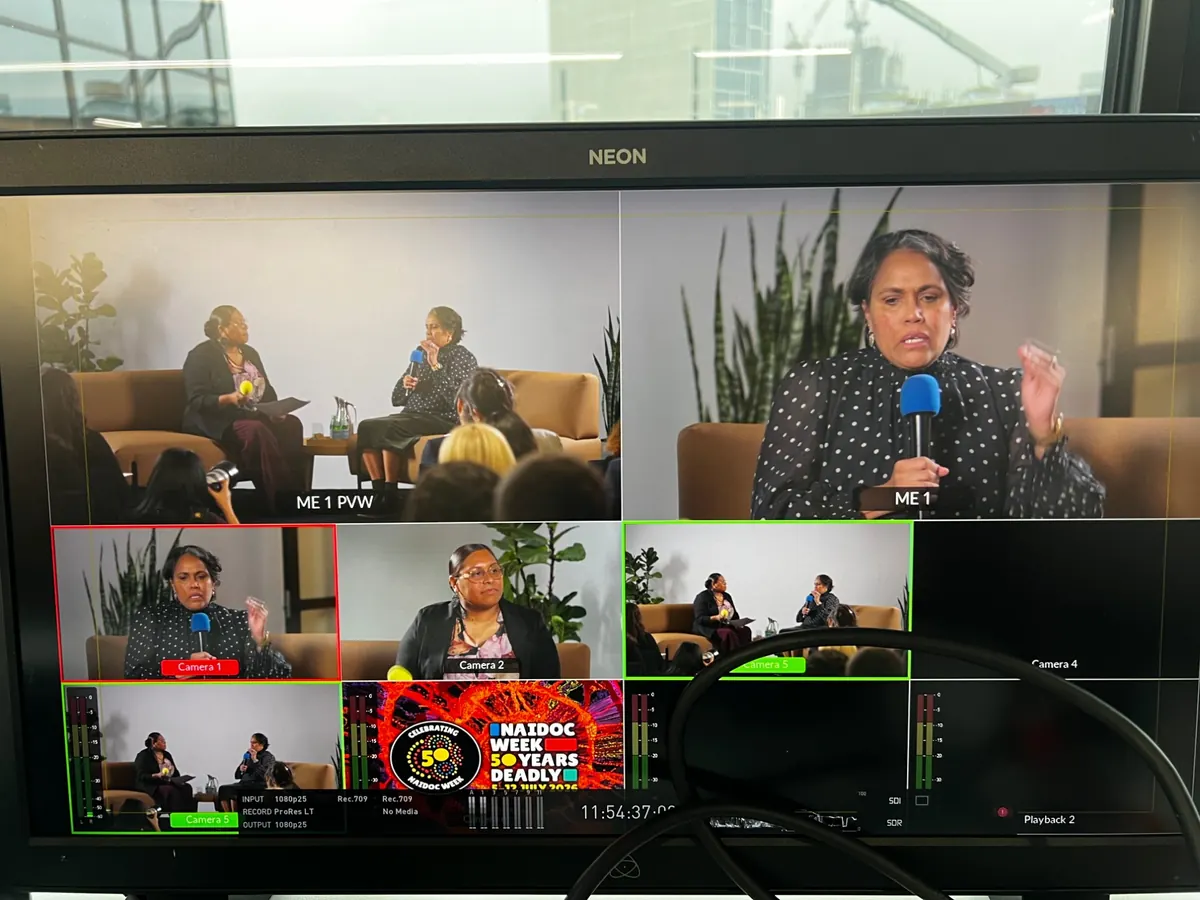
Example live stream picture: a multi-camera panel conversationLIVE

Welcome. We’ll take questions after the first session.

IN SYNC WITH THE STREAM

Polls arrive when
viewers hear the question.

Live streams run behind the room. We measure that delay for your audience and hold each poll until it reaches them, so nobody votes on a question they haven’t heard, and late viewers aren’t cut off at the end. The producer sees exactly when it goes live for viewers.

Illustrative demo. In a real event the delay is measured from viewers’ players where possible, or set by the producer.

PRODUCER

Which topic next?

Ready to launch

VIEWER, 12 S BEHIND

Watching the stream…

THREE WAYS TO ASK

Type it. Record it. Send it.

Choose the formats that suit your audience. All available from the same event page.

VIDEO QUESTIONS

Put a face to the question.

A team member in another office. A member watching from home. Let them record a short video question and bring their face and voice into the conversation.

Record in the event page or upload a clip. Your moderator watches and approves it, then production cues the original recording for playback in the stream.

AUDIO QUESTIONS

Hear it in their own words.

Let viewers ask a question using their voice, without appearing on camera. Tone and emphasis can say more than a line of text.

Record or upload an audio question and listen back before submitting. Your moderator reviews it, then production can play the approved recording into the broadcast.

WRITTEN Q&A

A simple way to ask.

For people who prefer to type, written questions sit alongside the stream. Other viewers can support a published question they would also like answered.

Enable moderation to review questions before they appear. Producers can publish questions, write replies and choose what goes on the presentation display.

Explore an example event

STRAIGHTFORWARD FOR THE VIEWER

A few simple steps.
A more personal question.

Viewers stay in control of their recording. They can check it before sending, and submitting a clip does not connect their camera to the live broadcast.

  1. 01

    Choose your format

    Open Q&A on the event page and choose a written, audio or video question from the options enabled for the event.

  2. 02

    Record or upload

    Record up to 60 seconds in the page, or upload a file below 25 MB. Camera or microphone permission is needed only when recording.

  3. 03

    Check it, then send

    Play your recording back, add a short description and agree to its use in the event and replay before submitting. You can record again first.

YOUR PRODUCER SETS THE PACE

Moderate it.
Send it to production.
Bring it to air.

Video and audio questions follow a clear path from submission to the broadcast. The moderator checks the contribution; production has the original recording available to cue and play. We agree the handover and playback setup before the event.

  1. Review the contribution

    Listen or watch, check the question and decide how it fits the discussion. Audio and video recordings always need approval before publication.

  2. Approve it for production

    Once approved, production can open or download the original video or audio recording from the contribution, ready to cue in the show.

  3. Play it in the live stream

    Cue the host, bring the recording into the broadcast and let the speaker respond. Production controls the playback and on-air timing.

FOR THE PEOPLE ON STAGE

Questions straight
to your host.

No group chat, no shared spreadsheet. Each host, whether your MC, panel chair, CEO or a guest from outside your organisation, gets a private link that opens on their phone or iPad without signing in. Everything they need is large and easy to read at a glance.

  1. The next question

    Moderators send approved questions, tidied if needed, to all hosts or one. The host taps Answered or Skip. The original question always stays in the event record.

  2. Cues and notes from the producer

    “Wrap up in 2 minutes”, “Go to the poll”, the next speaker’s name and title. Cues flash until the host taps OK, so the producer knows they landed.

  3. The time and the audience

    The time, a countdown to the start and the time left, and how many people are watching right now.

KEEP THE CONVERSATION MOVING

Questions are just the start.

Ask the whole audience.

Use polls, ratings, rankings, timed quiz questions or short surveys. Prepare ahead, schedule activities or launch one during the event.

See a shared idea take shape.

Ask for a word or short phrase. Clean words are included automatically and possible profanity is held for review. The producer controls the presentation display.

Keep watching. Join on your phone.

A QR code opens the questions and activities for that event. A direct link is available too, so scanning is optional.

On screen at the right moment.

Put an approved question or a short announcement over the video for every viewer. When your producer is in the room, it waits for the stream delay, so viewers see the question as it’s read out.

Full screen. Still part of it.

Viewers watching full screen keep questions, polls and word clouds in tabs at the side. A tab lights up when something new opens.

Join with just a name.

For open events, viewers can vote or add to a word cloud by typing their name, with one answer per person. No account or email needed.

ALREADY STREAMING IN TEAMS OR ZOOM?

Watch there.
Take part here.

If your audience watches in Microsoft Teams, Zoom, Webex, LinkedIn Live or another platform without its own Q&A, your event page works alongside it. Viewers get a button to open the stream, then ask questions, answer polls and vote on the page. Every question is moderated and kept in one record, and your host still gets them on their phone.

AFTER THE BROADCAST

Turn participation into insight.

Review what people asked, how they answered and what needs a follow-up. See who registered, who watched and for how long, with a live audience curve and a CSV for your team.

Explore live stream analytics

MORE PEOPLE IN THE CONVERSATION

Live captions. Included as standard.

Viewers switch them on or off in the player. We build accessibility into the plan, from clear sound to ways to ask a question.

Explore accessible live streaming

BEFORE THE FIRST QUESTION

Good to know.

How do moderated questions reach our MC or host?+

Through a private host view. Each host gets their own link to open on a phone or iPad, with no account or sign-in. Moderators send approved questions, tidying the wording if needed while the original stays in the record, plus cues and notes from the producer. The host taps Answered or Skip, and sees the time, a countdown and how many people are watching.

Can our audience watch in Teams or Zoom and still take part?+

Yes. Your producer adds the Microsoft Teams, Zoom, Webex, LinkedIn Live or other stream link to the event. People allowed into the event get a button to open it, and take part on the event page: questions, polls, word clouds and voting. Watch time on another platform can’t be measured, so attendance reports show participation instead.

Do we still need Slido, Mentimeter or another audience app?+

No. Questions, polls, word clouds and reactions are built into your JPC event page, next to the video. Viewers don’t install anything or switch to another tab, and your JPC producer moderates them as part of the production. Moderated questions also go straight to your host’s phone or iPad, so there’s no group chat or shared spreadsheet to manage either.

What about the stream delay when we run a poll?+

Live streams run 10–45 seconds behind the room. We hold each poll until it reaches your viewers, using a delay measured from viewers’ players where possible or set by your producer, and keep it open long enough for late viewers to answer.

Can people take part while watching full screen?+

Yes. In full screen, small tabs for Q&A, polls and word clouds appear on the right, only while that tool is open. Viewers type, press Enter, and the panel slides away. Producer announcements appear at the bottom of the picture.

Do viewers have to sign in to ask a question?+

It depends on your event. Invited events use a one-time email code, with no password. Open events can let guests join with just their name.

Can moderated video and audio questions go straight to production?+

Yes. Moderators can review and approve either format, and production can open or download the original recording from the contribution for playback. We prepare the playback route with your production team; approval does not automatically take a clip to air.

Does recording a question put someone live on air?+

No. The viewer submits a recording. The producer chooses whether and when it is played during the event. A live two-way guest conversation is a separate workflow, with an invitation and connection check.

Who decides which questions are used?+

Your event producer or moderator. Audio and video recordings always wait for review; written questions can also require approval. Publishing a question and playing it in the broadcast are separate decisions. Sending a question does not guarantee it will be used.

Can people take part from their phones?+

Yes. Viewers can open the event link on their phone or scan its QR code from another screen. They can leave the broadcast playing on the big screen while using their phone for questions and activities. Event access requirements still apply.

Can we offer written questions only?+

Yes. Producers can switch audio and video questions on or off for each event, along with polls, word clouds and other participation options. The page can be kept as simple as your audience needs.

Can someone ask anonymously?+

If the event allows it, viewers can hide their name from other viewers. The producer can still identify their account. A recorded voice or face can identify someone even when their name is hidden.

What if a browser cannot record?+

The viewer can upload a recording instead, or send a written question. Keep uploaded audio and video files below 25 MB.

Do we need another audience engagement subscription?+

Questions, polls, ratings, rankings, timed quiz questions, short surveys and word clouds are built into the JPC event page. Your producer confirms which tools, moderation and playback arrangements are included in your event quote.

CLEAR PRICES. A CLEAR PLAN.

Know your budget before you book.

Melbourne production price guides, in Australian dollars. We confirm the crew, equipment and inclusions in your quote.

One camera

A$3,025–$3,850incl. GSTA$2,750–$3,500 ex. GST

A short webinar, presenter session or straightforward meeting. One operator, audio, one streaming destination and recording.

Live captions includedGet a quote for your event ↗

Two cameras

A$3,850–$6,600incl. GSTA$3,500–$6,000 ex. GST

A half-day panel or town hall. Camera coverage, live switching, lower thirds and recording.

Live captions includedGet a quote for your event ↗

Full-day production

A$6,600–$11,000incl. GSTA$6,000–$10,000 ex. GST

Multi-camera coverage with a dedicated director, audio operation and show graphics.

Live captions includedGet a quote for your event ↗

Conference or forum

A$11,000–$20,900incl. GSTA$10,000–$19,000 ex. GST

Multiple sessions, rehearsal and session recordings. We scope the schedule and crew with you.

Live captions includedGet a quote for your event ↗

Live captions are included as standard. Event-page setup, audience tools, remote guests, specialist AGM voting, venue charges and travel are confirmed separately in your quote. These guides are for production, not standalone platform subscriptions.

Read JPC’s detailed pricing guide ↗

EASY TO BOOK. SUPPORTED FROM THE START.

Tell us when.
We’ll take care of the live stream.

You don’t need to understand streaming. That’s our job.

  1. Tell us about your event

    Share your date, location and a rough idea of what you need. Still working out the details? We’ll help.

  2. Get a clear quote

    We recommend a setup and explain the costs and inclusions. You know what you’re booking.

  3. Approve it. We take it from there.

    Your JPC producer guides the preparation, technical checks and agreed rehearsal. One team to call, from planning to the live event.

No account needed to enquire. No technical brief required to start a conversation.

THE JPC LIVE STREAM GUARANTEE

It stays live or it’s free.

Technical failure on our side? We’ll fix it fast or refund your fee.

Five 5G connections. Starlink outdoors.We bring our own internet. Five 5G connections, with Starlink too for outdoor events, so your stream doesn’t have to depend on the building’s internet.

Our backup approach
From A$3,025 incl. GST
ChatGet a quote ↗