Cast your vote on a resolution
Choose For, Against or Abstain, then confirm. Your vote can’t be changed once it’s recorded.
Once the chair opens voting, you vote on the event page. This page shows you how. A resolution is the motion being voted on.
If you're not in yet, see Get in to vote.
The voting panel
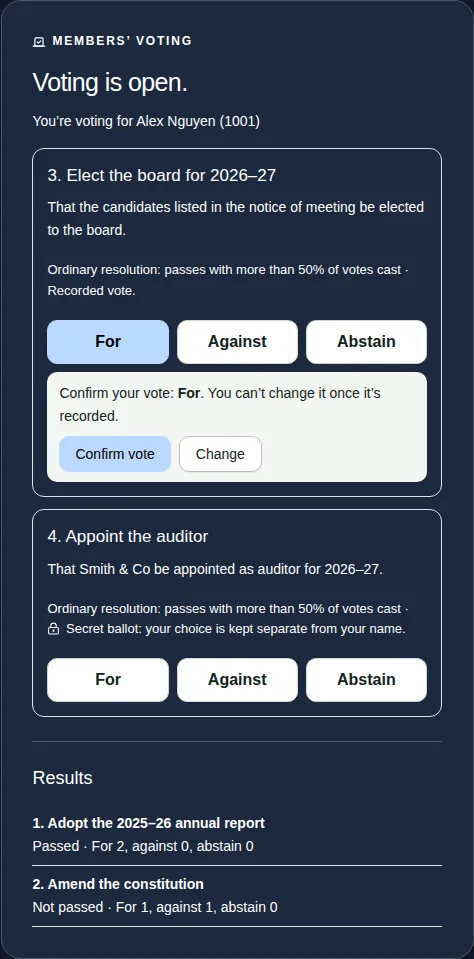
The MEMBERS' VOTING panel is on the event page, next to the video. It only appears once the chair has opened voting on at least one resolution.
It shows:
- who you're voting for, for example “You're voting for [your name] ([member number])”;
- each resolution's number, title and exact wording;
- what it needs to pass, for example “Ordinary resolution: passes with more than 50% of votes cast”;
- what kind of vote it is:
- Recorded vote: the organisation can see how each member voted.
- Secret ballot: “your choice is kept separate from your name”. Nobody, including the organisers, can see how you voted, only that you voted.
Steps
- Choose For, Against or Abstain.
- Read the confirmation, for example “Confirm your vote: For. You can't change it once it's recorded.”
- Choose Confirm vote. Or choose Change to pick again.
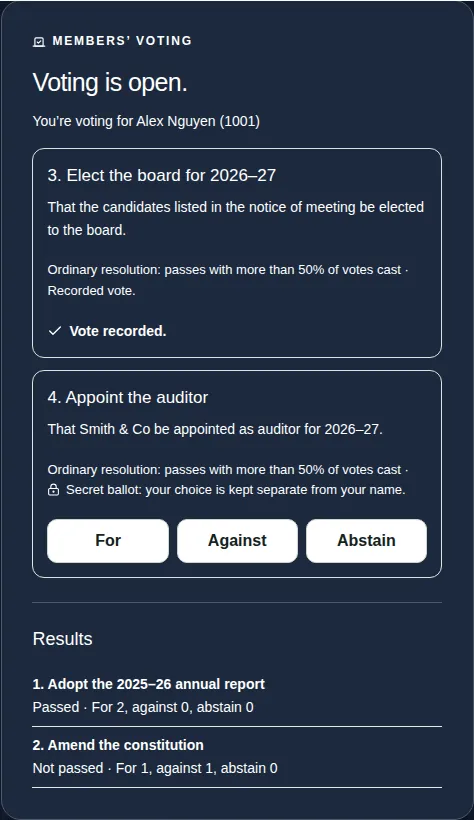
- You see “Your vote has been recorded.” and Vote recorded.
Good to know
- If the internet is busy, the app tries again for you. It never counts your vote twice.
- If more than one resolution is open, vote on each one. See When more than one resolution is open.
- Voting works on a phone too.
- To see how the vote went, see See the results.