Sign in with an email code
Sign in with your email address and a 6-digit code. There are no passwords.
Some events ask you to sign in with your email address. There's no password. Instead, we email you a 6-digit code, and you type it in.
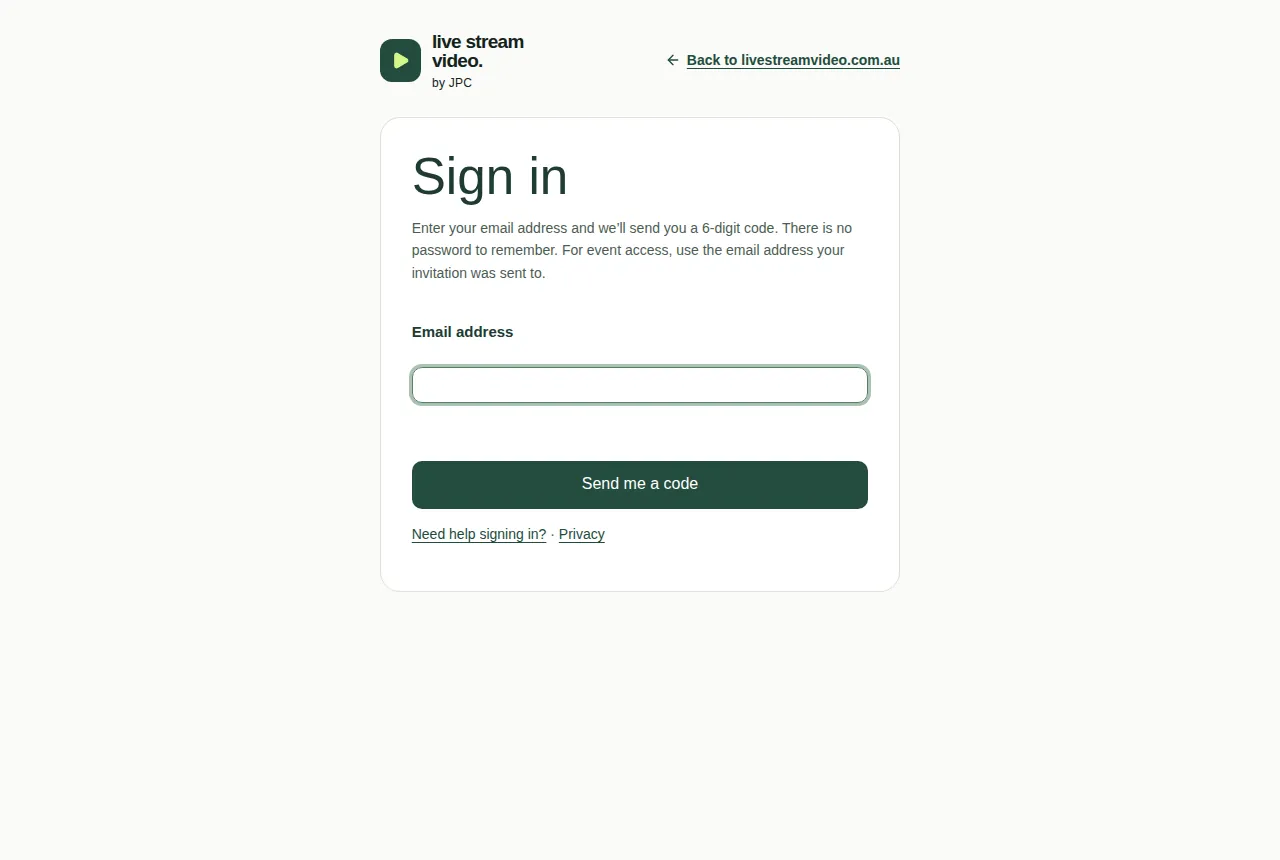
Get a code
- Choose Sign in to join the event on the event page, or go to the Sign in page.
- Type your email address in Email address. For an invite-only event, use the address your invitation was sent to.
- Choose Send me a code.
Type in the code
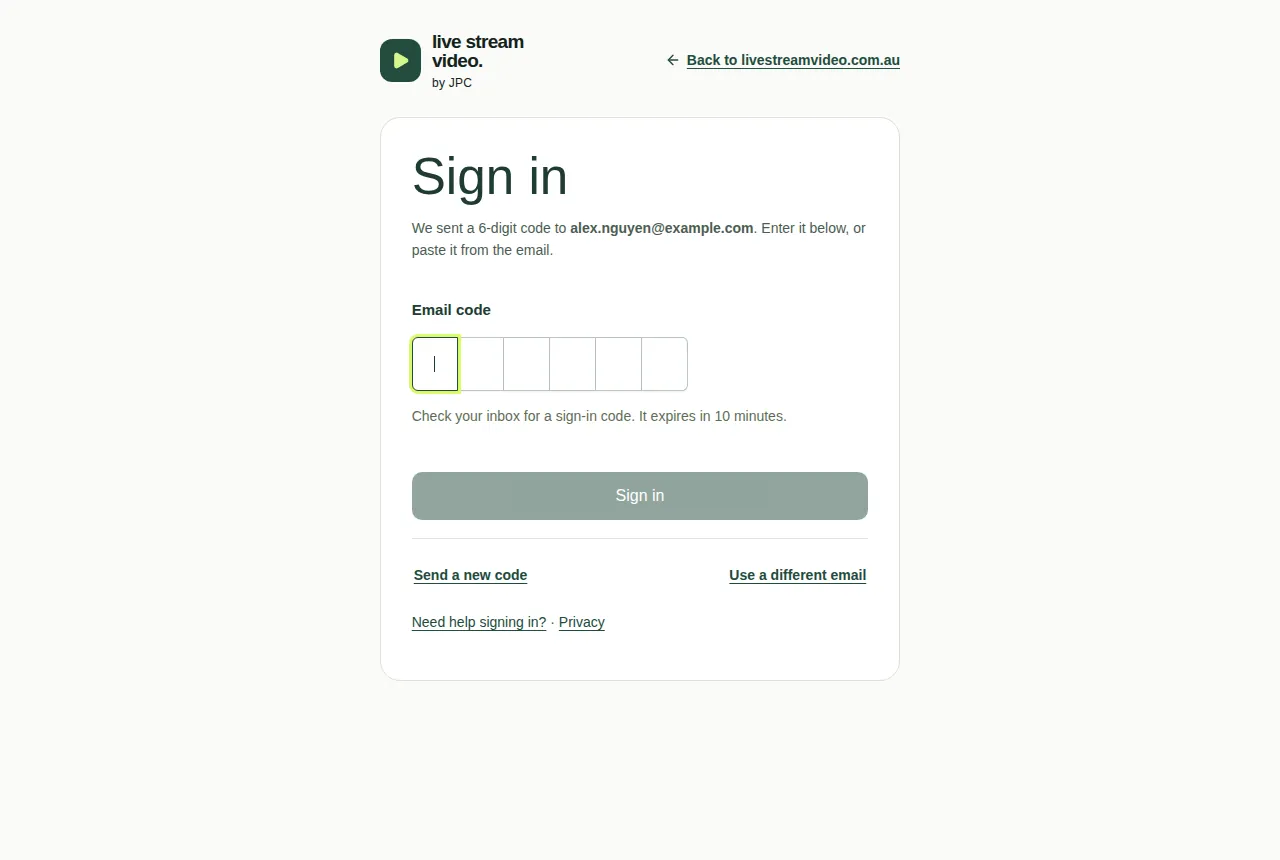
- Check your email for a message called "XXXXXX is your Live Stream Video sign-in code", where XXXXXX is your code.
- Type or paste the 6 digits into Email code. It signs you in by itself once all 6 digits are in. You can also choose Sign in.
- You see "Signed in. Taking you there…" and go back to the event.
Good to know
- The code lasts 10 minutes. You get 5 tries for each code.
- Send a new code sends a fresh code. The old code stops working, so only the newest code works.
- Use a different email takes you back to the start, so you can type another address.
- You stay signed in for 14 days on that device. On a shared computer, sign out when you're done.
- If you ask for too many codes, you'll see "Too many attempts. Please wait a few minutes and try again."
If the code doesn't arrive
- Wait a minute.
- Check your junk or spam folder.
- Check you typed your email address correctly. If not, choose Use a different email.
- Choose Send a new code.
- Still nothing? Choose Need help signing in?, which emails the JPC team.
See also When you can't get in and Keeping accounts safe.