Record an audio or video question
Record a short audio or video question, or upload a clip you already have.
You can send your question as a short audio or video recording instead of typing it. A recording is a question you send in. It doesn't put you live on air.
Steps
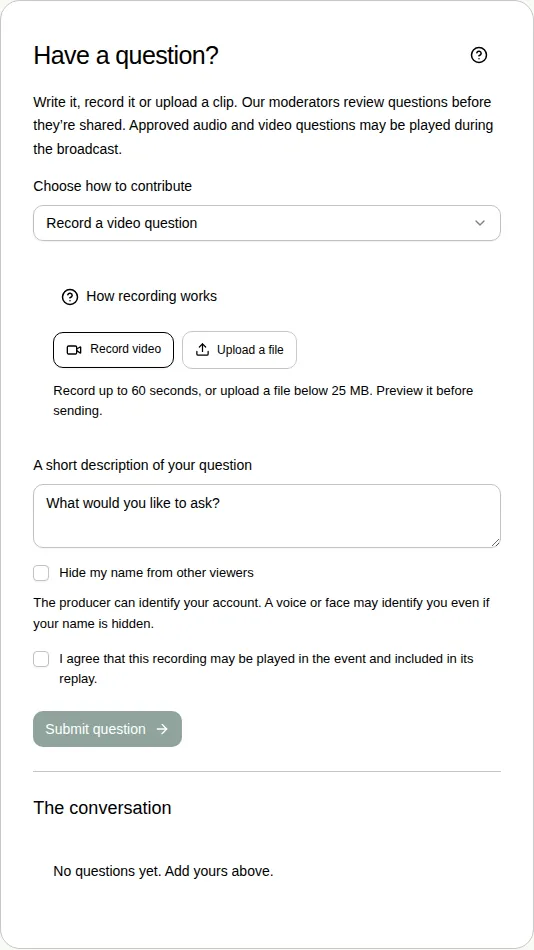
- Open the Q&A tab. Under Choose how to contribute, pick Record an audio question or Record a video question.
- Choose Record audio or Record video. Your browser asks to use your microphone or camera. Choose Allow.
- Speak your question. You have up to 60 seconds. Choose Stop when you're done.
- Play it back to check it. Choose Record again if you want another go.
- Or choose Upload a file to send a recording you already have. It must be under 25 MB, and be an MP4, WebM, MOV, MP3 or Ogg file.
- Type a short description in A short description of your question.
- Tick I agree that this recording may be played in the event and included in its replay.
- Choose Submit question.
Good to know
- The producer always checks recordings first, even if typed questions show straight away.
- Ticking Hide my name from other viewers hides your name, but not your voice or face.
- You can send up to 20 recordings per event.
- If you see “Recording is not supported in this browser. Upload a file instead.”, record on your phone or another device, then use Upload a file.
- The organiser can switch audio or video questions off. If you can't see these choices, they aren't available at this event.
- To type a question instead, see Ask a question.