Finish setting up your event
JPC creates your event and emails you a link. Choose who can watch, the colours, the holding slide and the audience tools.
JPC creates your event page and gives it a name and web address. Then you finish the setup yourself. It takes about two minutes.
Start the setup
- Look for an email called "Finish setting up" and your event's name.
- Open the link in the email.
- Sign in with the email address the message was sent to. We email you a one-time code, so there's no password.
You can also go to your events list and choose Finish setup next to the event.
The steps
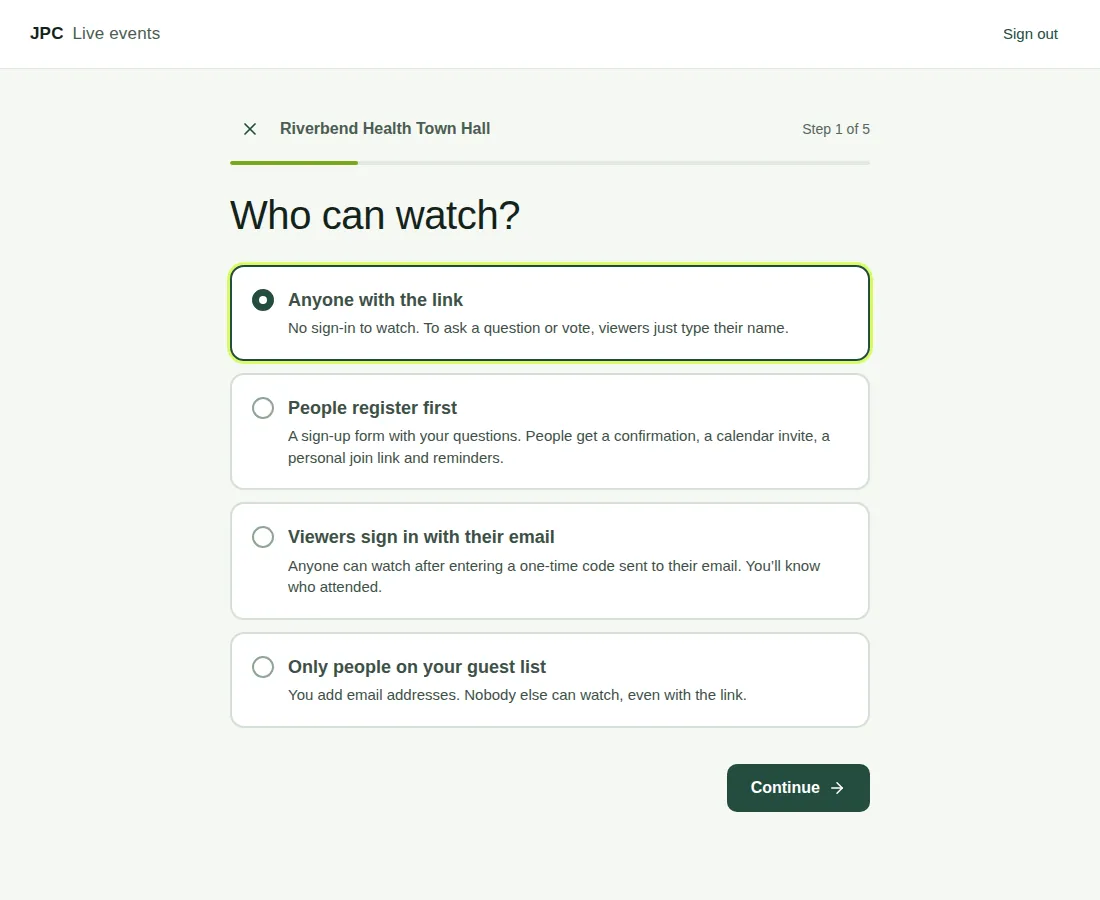
Setup asks one question per screen. Choose Continue to move on, Back to go back, or the × to leave.
- Who can watch? Choose how people get in. See Choose who can watch.
- Choose your colours. Pick Forest, Ocean, Plum or Midnight, or set your own with Or use your brand colour. It's used for buttons, highlights and the video player's controls. To add a logo, choose Upload a logo. Use a PNG or WebP file up to 2 MB, ideally with a see-through background.
- Before you go live. Add the Date and start time (in Melbourne time) if you know it. Then add a Holding slide if you like. This is the picture viewers see before the event starts and after it ends. Choose Choose an image: a 16:9 image, such as 1920 × 1080 pixels, in JPG, PNG or WebP, up to 5 MB.
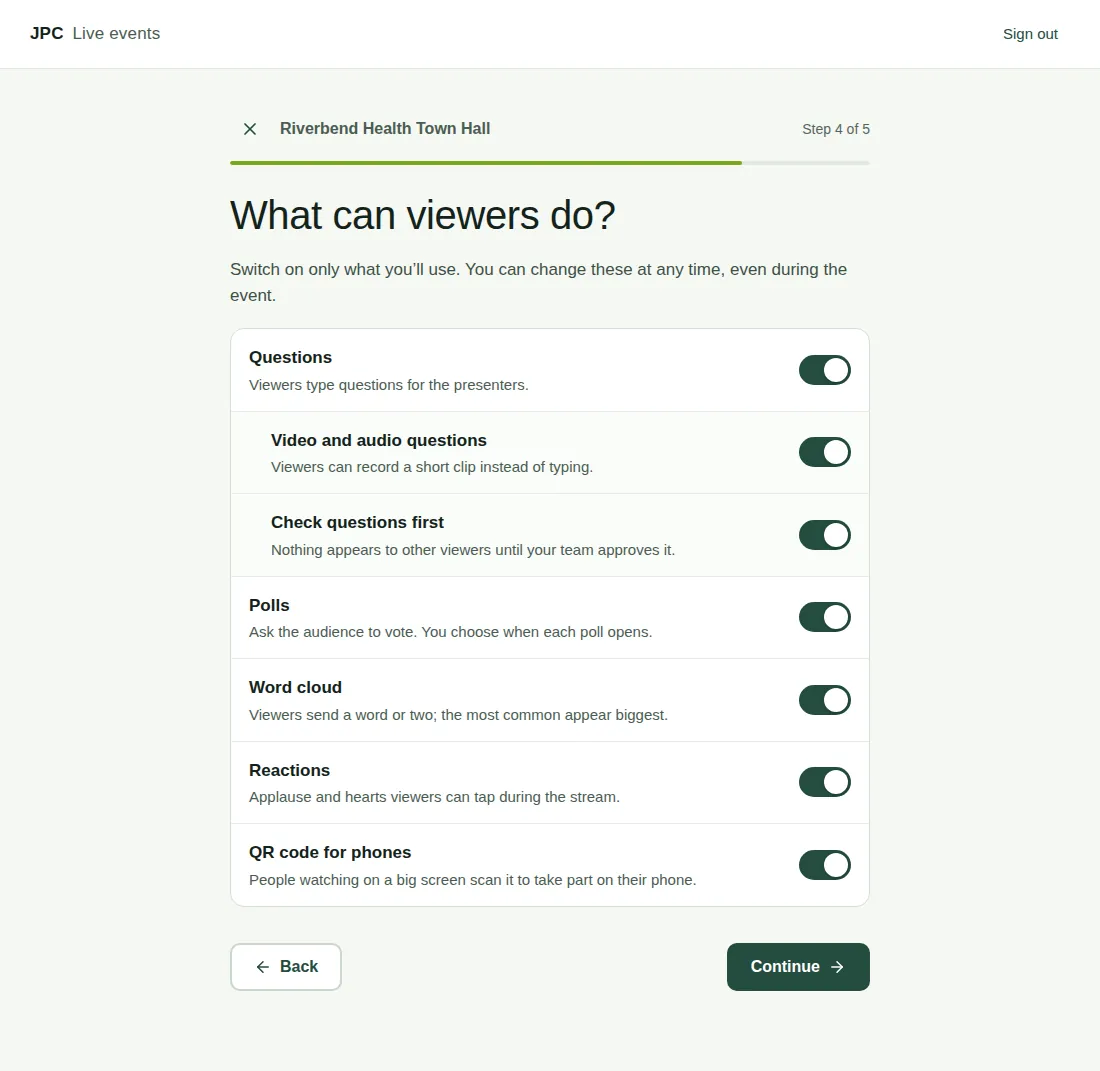
- What can viewers do? Switch on only the tools you'll use, such as Questions, Polls and Reactions. You can change these at any time, even during the event.
- Check and save. Check everything. Choose Change next to anything you want to fix. Then choose Save and finish.
When you're done
You see "You're all set." with the viewers' link. Copy link copies it. The viewers' link is the only thing your audience needs. You can also choose Open producer view, See what viewers see or Back to events.
Good to know
- Images that aren't 16:9 get cropped to fit, and the page warns you.
- Without a holding slide, viewers see a simple message with the event name and start time.
- A logo without a see-through background shows as a box, and the page warns you.
- The event name and web address aren't part of these steps. If one needs to change, ask your JPC producer.
- You can change any of this later. See Change the event setup.