Change the event setup
Go back through the setup steps to change the start time, colours, logo, holding slide, audience tools or who can watch.
You can change your event's setup at any time. This page is for producers who want to update the look, the start time or who can watch.
Steps
- Open the setup steps in one of two ways:
- in the events list, choose … then Change setup; or
- on the producer page, in the Event settings box, choose Change event details, colours, logo, holding slide or who can watch.
- Go through the steps again: Who can watch?, Choose your colours, Before you go live and What can viewers do?. Choose Continue to move on.
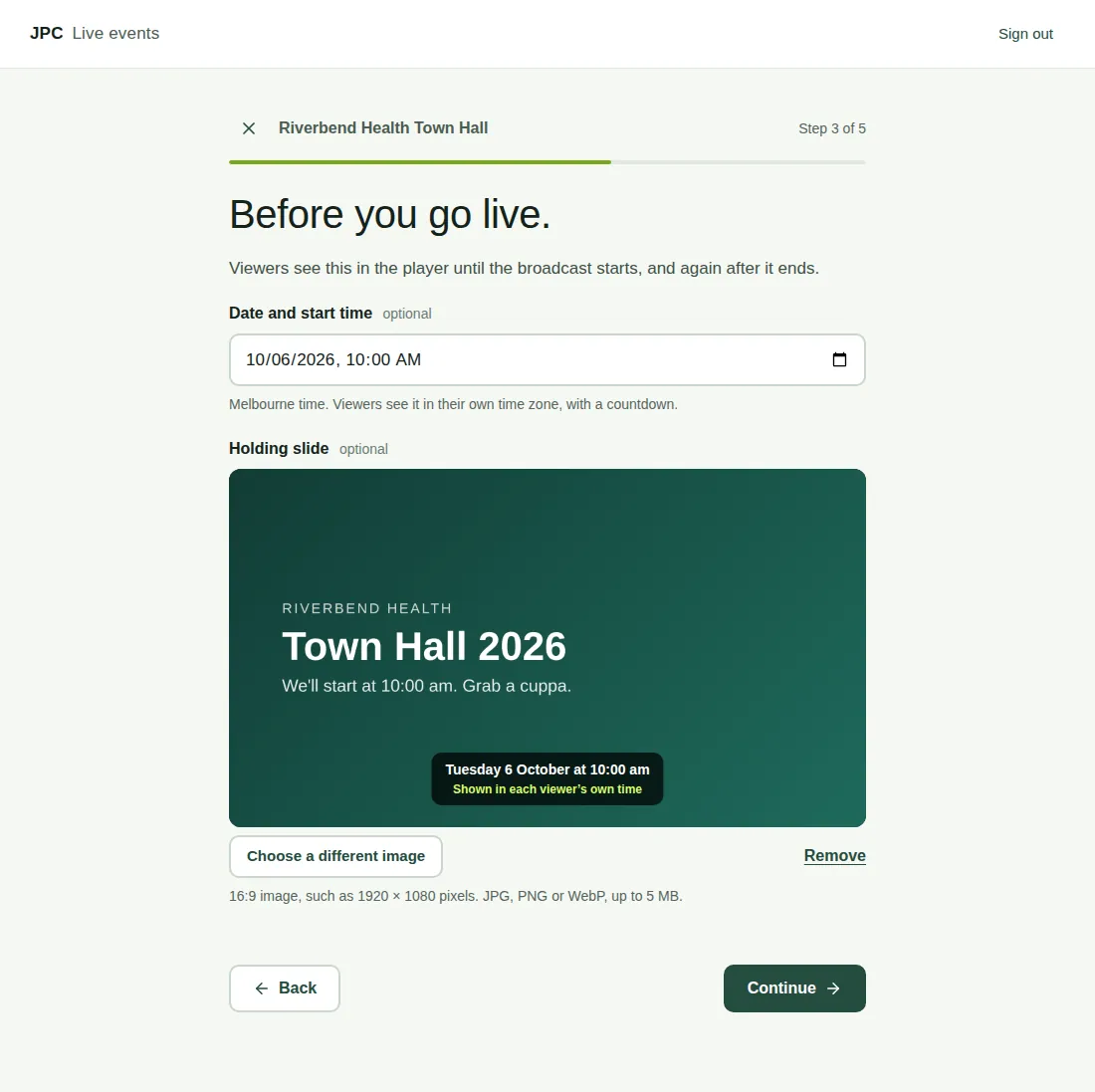
- On the Before you go live step, you can change the Date and start time (Melbourne time) and the Holding slide. Choose Choose a different image for a new slide, or Remove to take it away.
- On Check and save, check everything. Choose Save and finish.
Good to know
- Viewers see the start time in their own time zone, with a countdown.
- The switches for audience tools can also be changed during the show, in the Switches tab. See Turn features on and off.
- You can also change who can watch from the Access & invitations tab. See Choose who can watch.
- The web address can't be changed after the event is created.