Run through a rehearsal checklist
A checklist to work through at your rehearsal, so the show runs smoothly on the day.
Use this checklist at your rehearsal, or about an hour before the show. Work through it with your JPC producer and anyone running graphics.
Picture and sound
- Start the stream from your encoder (the device or software that sends the video). The preview appears on the producer page within about 30 seconds.
- Check the picture and sound in the preview. Only you can see it. Viewers still see the holding slide.
- Check that the Main and Backup lights both say receiving video.
- Choose View as a viewer to check the holding slide and start time look right.
- See Go live for the full steps.
Captions
- If your event has captions, check they appear. Choose CC on the player and pick the caption track. See Turn on captions.
Big-screen graphics
- If your event has poll results or questions on a big screen in the venue, your JPC producer sets this up and checks it with you at the rehearsal.
Host links
- Make a link for each host and send it. Check each host shows Connected in the Hosts tab. See Give hosts their links.
- Send a test cue, and check it says Seen by the host. Then choose Remove.
Switches
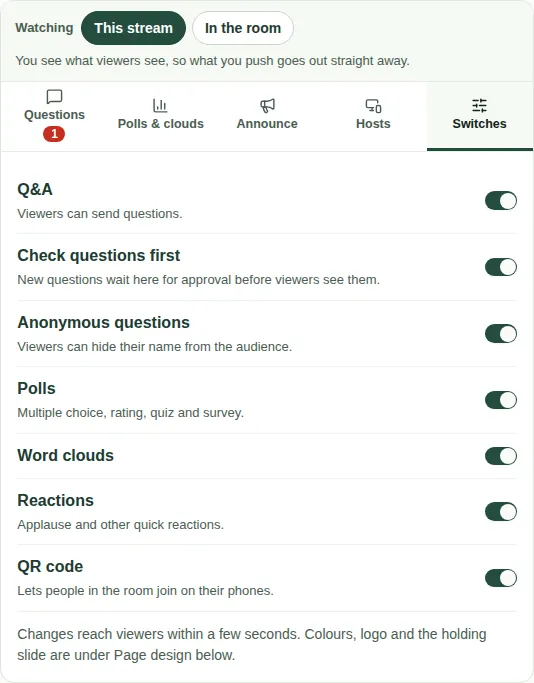
- Open the Switches tab. Check that only the tools you'll use are on: Q&A, Check questions first, Anonymous questions, Polls, Word clouds, Reactions and QR code. See Turn features on and off.
Polls in the queue
- Add every poll and activity before the event. Check the spelling, the options, and the right answer for a quiz. See Add a poll or activity.
- If an activity opens or closes by itself, check the times. They're in Melbourne time.
A test question
- Ask someone to open the viewers' link on their phone and send a test question.
- Check it arrives in To check, then choose Approve.
- Try Put on screen and Take off screen. Try Send to host and check the host sees it.
- Choose Hide when you're done, so it's gone before the show.
Backup stream and delay
- If the main stream stops while the backup is running, a red warning appears with Switch to backup. Know where it is before the show. See Main and backup streams.
- Measure the stream delay, so polls and questions line up with what viewers see. See Set the stream delay.
Last things
- Set the message under the video.
- Check your documents and links. See Add documents, chapters and a transcript.
- For the show itself, see Run a typical show.