Watch the stream lights and switch to the backup
Check that video is arriving on the main and backup streams, and switch viewers to the backup if the main one stops.
Your event can have two video feeds: a main stream and a backup stream. The backup is a second feed, ready in case the main one stops. The Live channel box shows how each one is going.
The lights
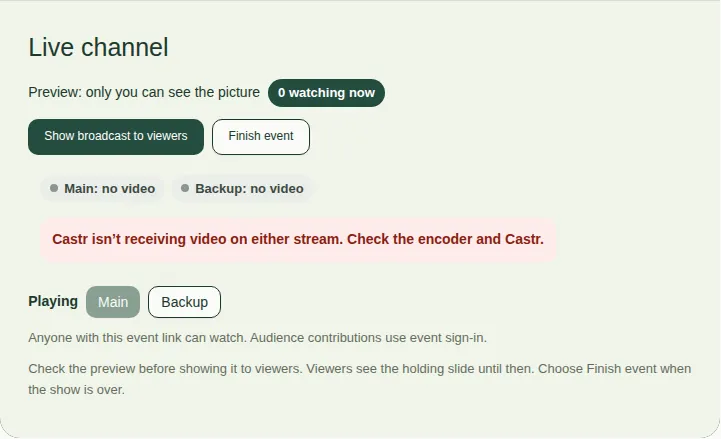
- Main and Backup each say receiving video or no video. They show whether Castr (the video service) is getting a picture from each encoder.
- Playing has two buttons, Main and Backup. They pick which stream viewers watch.
If the main stream stops
- If the main stream stops and the backup is still running, a red warning appears with a Switch to backup button.
- Choose Switch to backup. Viewers now watch the backup stream.
- When the main stream comes back, you'll see Switch back to main. Choose it to go back.
If neither stream has video
You'll see "Castr isn't receiving video on either stream. Check the encoder and Castr."
This means the encoder has stopped, or the internet at the venue dropped. Restart the stream from the encoder. Viewers see Castr's offline screen until it's back.
Good to know
- If "Waiting for Castr" doesn't change, check the encoder is streaming. The preview can take up to 30 seconds.
- See Go live and Troubleshooting for producers.