Send a question to a host
Send an approved question to the hosts’ phones or iPads, with tidied wording if you like.
You can send an approved question to the hosts' phones or iPads. Hosts are the people on stage or on camera, such as an MC or a panel. First, give the hosts their links. See Give hosts their links.
Steps
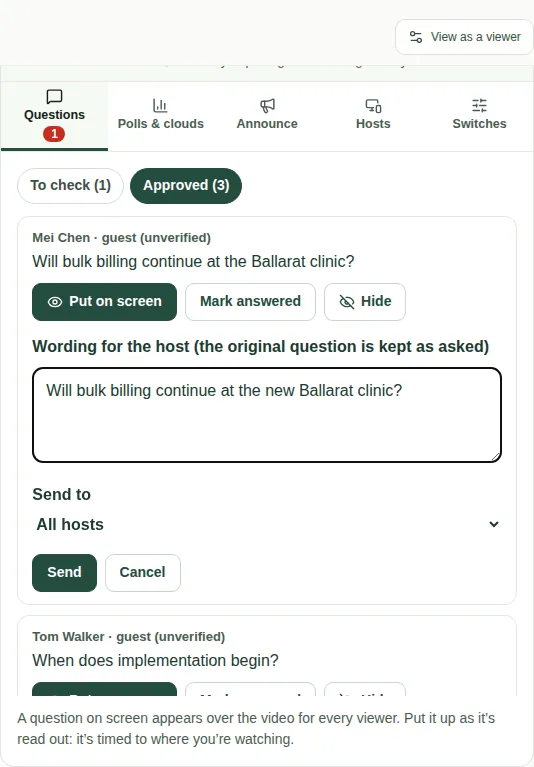
- Open the Questions tab, then Approved.
- Choose Send to host on a question.
- Tidy the wording if you like, in Wording for the host (the original question is kept as asked).
- If there's more than one host, choose who it's for in Send to. Or leave it as All hosts.
- Choose Send.
Good to know
- The original question is still kept, word for word, for the records.
- Each host only sees questions meant for everyone or for them.
- Hosts never see attendees' email addresses or registration details.
- To see if a question has been answered, or to take it back, use Sent to hosts in the Hosts tab. See Send a cue or a note.
- If JPC is running a control room, they can put the question on air for you.
- See what hosts see in What's on the host page.