Launch, close and reveal a poll
Open an activity for viewers, stop new answers, and show the results.
Every activity under Ready to run in the Polls & clouds tab has three buttons. Use them to run the activity during the show.
Steps
- Choose Launch to open it for viewers. They get a "New" badge and a Take part button.
- Watch the results appear under the buttons as answers arrive. Only you can see them for now.
- Choose Close to stop new answers. Viewers get 10 more seconds, in case their stream is a bit behind. To stop straight away, choose Close now while it's closing.
- Choose Reveal results to show the results to viewers. Hide results takes them away again.
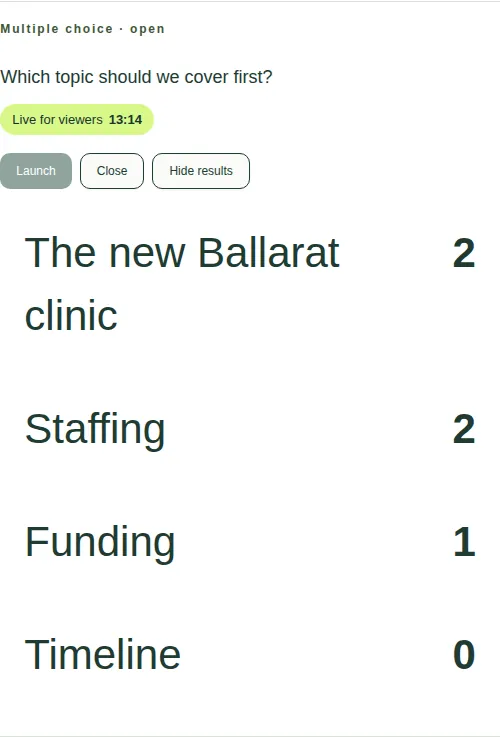
The timing label
A coloured label shows the timing for viewers:
- "Goes live for viewers in 20 s";
- "Live for viewers 3:55" (how long it's been open);
- "Closing for viewers in 8 s";
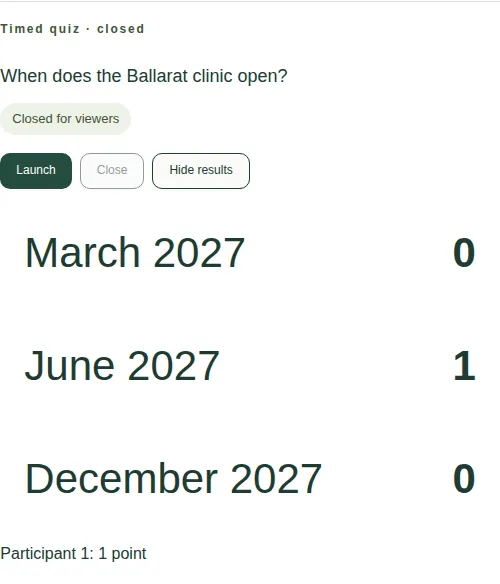
- "Closed for viewers".
You can run an activity again later by choosing Launch again.
How results work
| Type | Results |
|---|---|
| Multiple choice and rating | A count for each answer. |
| Ranking | Points. First place earns the most points, and last place earns 1. |
| Timed quiz | A count for each answer, and a leaderboard by participant number, for example "Participant 1: 1 point". |
| Word cloud | The most popular words, up to the leading 200. |
| Open text and survey | The written answers, up to the first 100. |
Good to know
- If you're watching In the room, these buttons wait for the stream delay. See This stream or In the room.
- To show the poll on the big screen in the venue, ask your JPC producer.
- To save the results, choose Export displayed results CSV under the queue. See Download poll and activity results.