Find your way around the producer page
The parts of the page you use to run an event: the video, the console and the settings.
The producer page is where you run your event on the day. This page is for producers: the people who go live, check questions and run polls.
Open the producer page
- Go to your events list.
- Choose Open next to the event.
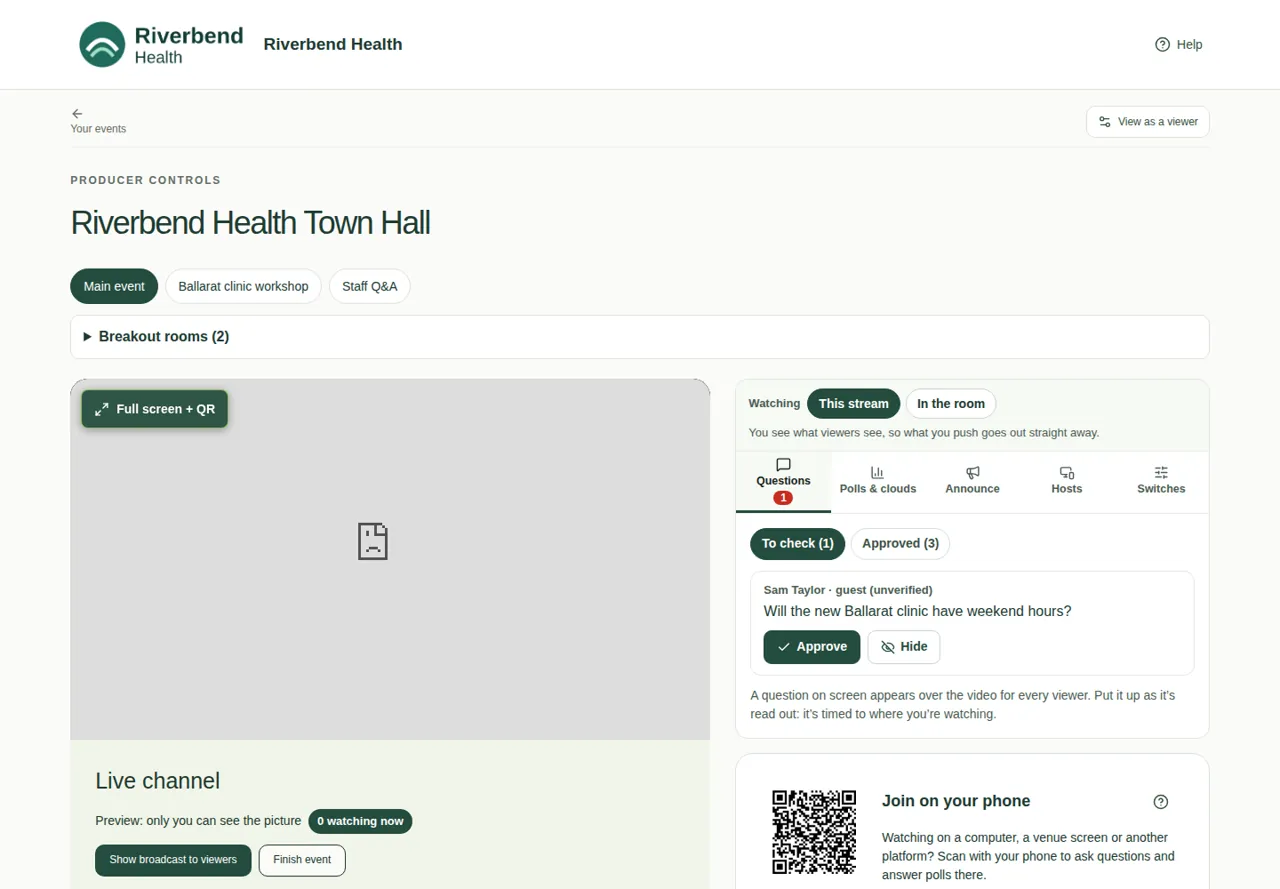
The three main parts
- The video and live channel, on the left. This is where you go live, switch streams and finish. See Go live.
- The console, on the right. It has five tabs:
- Questions: check audience questions and use them. The red number shows how many are waiting for you.
- Polls & clouds: add and run polls and other activities, and choose what's on the big screen.
- Announce: send a short message to every viewer.
- Hosts: host links, cues and notes.
- Switches: turn Q&A, polls, word clouds, reactions and the QR code on or off.
- Event settings and Reports, records and access, further down. These hold the message under the video, help requests and your event setup. See Change the event setup.
At the top of the console is a choice called Watching. Set it before the show. See This stream or In the room.
Good to know
- View as a viewer (top right) opens the event the way an audience member sees it. Use it to check what's really on screen.
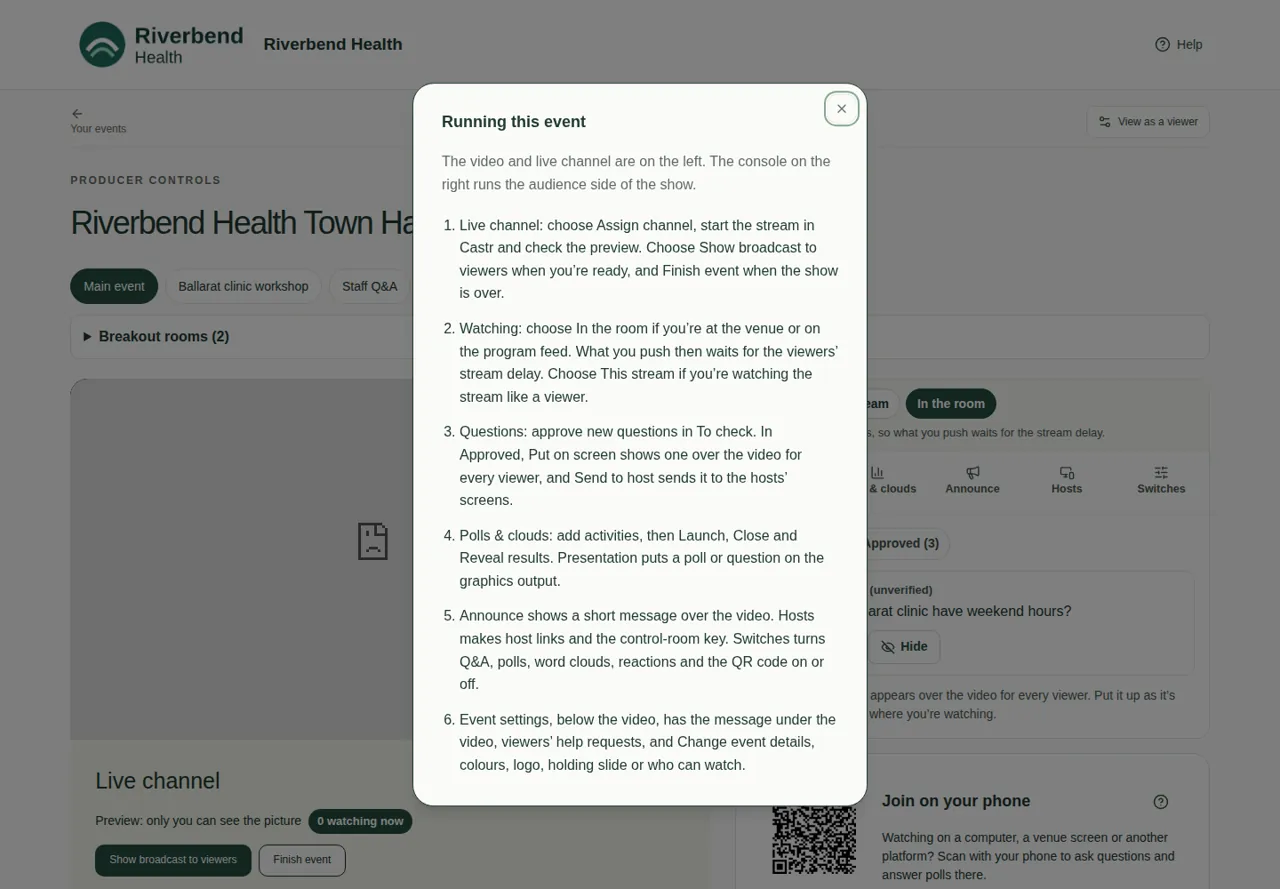
- The Help button at the top opens Running this event, a short summary of the page.
- New to the words? See Words we use.
- For the whole day in order, see A typical show, step by step.