Check word cloud words and written answers
Approve or hide words and written answers, and take a word out of a cloud.
Some answers wait for you to check them before viewers see them. This page shows you how to approve them, hide them, or take a word out of a word cloud.
Word clouds
Words appear in the cloud by themselves, unless they might be rude. Those wait under the activity with a warning: "Possible profanity. Check carefully before approving."
- Find the word under the activity in the Polls & clouds tab.
- Choose Approve to add it, or Hide to keep it out.
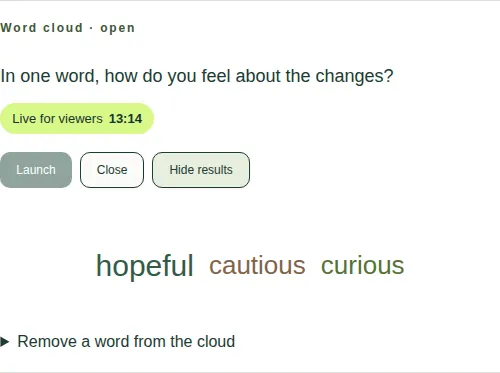
Take a word out of a cloud
- Under the word cloud, open Remove a word from the cloud.
- Choose Hide word next to the word.
Open text and survey answers
Written answers wait under the activity, 100 at a time. Choose Approve or Hide for each one.
Good to know
- To stop word clouds altogether, use the Switches tab. See Turn features on and off.
- See Launch, close and reveal a poll.