Go live, hide the picture and finish the event
Show the live picture to viewers, take it away for a moment, finish the event, or go live again.
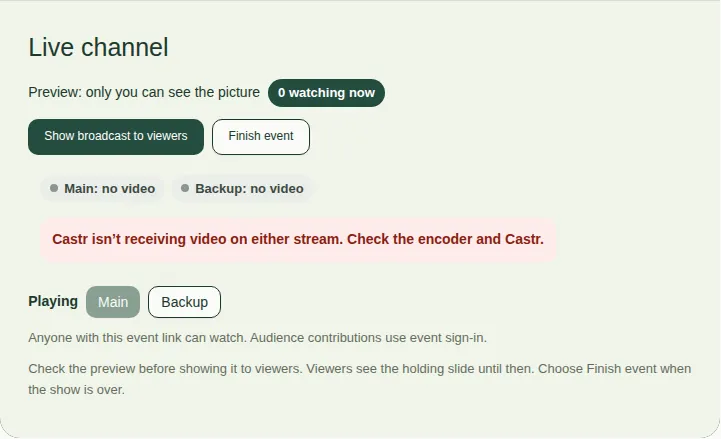
Use the Live channel box on the left of the producer page to go live and to finish. The words under the heading tell you what stage the event is at.
Steps
- If it says "Channel not assigned", choose Assign channel. JPC sets up which channel your event uses.
- Start the stream in your encoder. (The encoder is the machine or program that sends the video to Castr, the video service JPC uses.) The preview appears on the producer page within about 30 seconds. Only you can see it.
- Check the picture and sound in the preview.
- When you're ready, choose Show broadcast to viewers and confirm. Viewers see the live picture straight away.
- To take the picture away for a moment, choose Hide from viewers. Viewers see the holding slide until you show the broadcast again.
- When the show is over, stop the stream in your encoder first. Then choose Finish event and confirm.
What the box says
| What it says | What it means |
|---|---|
| Channel not assigned | The event doesn't have a live channel yet. Choose Assign channel. |
| Waiting for Castr | The channel is ready, but no video is arriving yet. Start the stream in your encoder. |
| Preview: only you can see the picture | Video is arriving. You can see it. Viewers still see the holding slide. |
| Live to viewers | Everyone can see the picture. |
| Saving the recording | The event has finished and the recording is being saved. |
| The event has ended | Viewers see a "This event has finished" message. |
| Replay | Viewers can watch the recording. |
| Replay access has ended | The replay closing time has passed. |
Made a mistake?
After finishing, choose Go live again. It takes the channel back and shows you the preview. Viewers see the holding slide until you choose Show broadcast to viewers again.
Good to know
- The green bubble, for example "0 watching now", is how many viewer pages are open right now. It doesn't count producers.
- Keep an eye on the stream lights. See Watch the stream lights.
- After the show, see Publish a replay.