Change the viewing and replay settings
Send viewers to another platform, set when the replay closes, or add caption tracks.
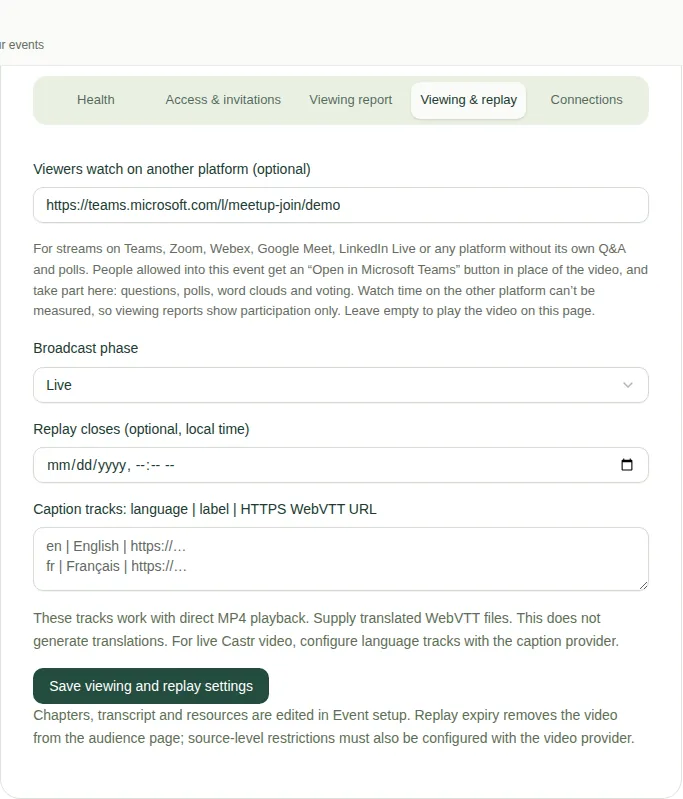
The Viewing & replay tab controls where viewers watch, how long the replay stays up, and extra caption files. This page is for producers.
Steps
- On the producer page, open Reports, records and access.
- Open the Viewing & replay tab.
- Change any of these:
- Viewers watch on another platform (optional): paste a Teams, Zoom, Webex, Google Meet, YouTube, Vimeo, LinkedIn, Facebook, GoTo Webinar or ON24 link. Viewers get an Open in… button instead of the video, and take part on your event page. Leave it empty to play the video on your page.
- Replay closes (optional): after this time, the replay disappears from the event page. See Close the replay.
- Caption tracks: caption files in other languages, for direct MP4 videos only. Write one per line, like
en | English | https://…. Each line is the language, a label, and a link to a WebVTT caption file. You can add up to 12.
- Choose Save viewing and replay settings.
Good to know
- You'll also see Broadcast phase (Live or Replay). JPC looks after this, so you can leave it as it is.
- The app doesn't translate captions. You need to supply the caption files.
- To see what viewers get with another platform, read Watch on Teams or Zoom.
- Replay chapters, documents and the transcript are set in Event settings. See Add documents, chapters and a transcript.