Set up registration
Set up the sign-up form for a "People register first" event, with your own questions.
If people register first, they fill in a sign-up form on your event page. This page shows you how to set up that form and add your own questions.
Steps
- Make sure Viewer access is set to People register first. See Choose who can watch.
- On the producer page, open Reports, records and access, then the Access & invitations tab.
- Fill in the sign-up form settings:
- Introduction (optional): a few words at the top of the form, up to 2,000 characters.
- Places: how many people can register. Type 0 for no limit.
- Registration closes (optional): the date and time the form closes, in Melbourne time.
- Event length in minutes: used for the calendar invite. It starts at 60.
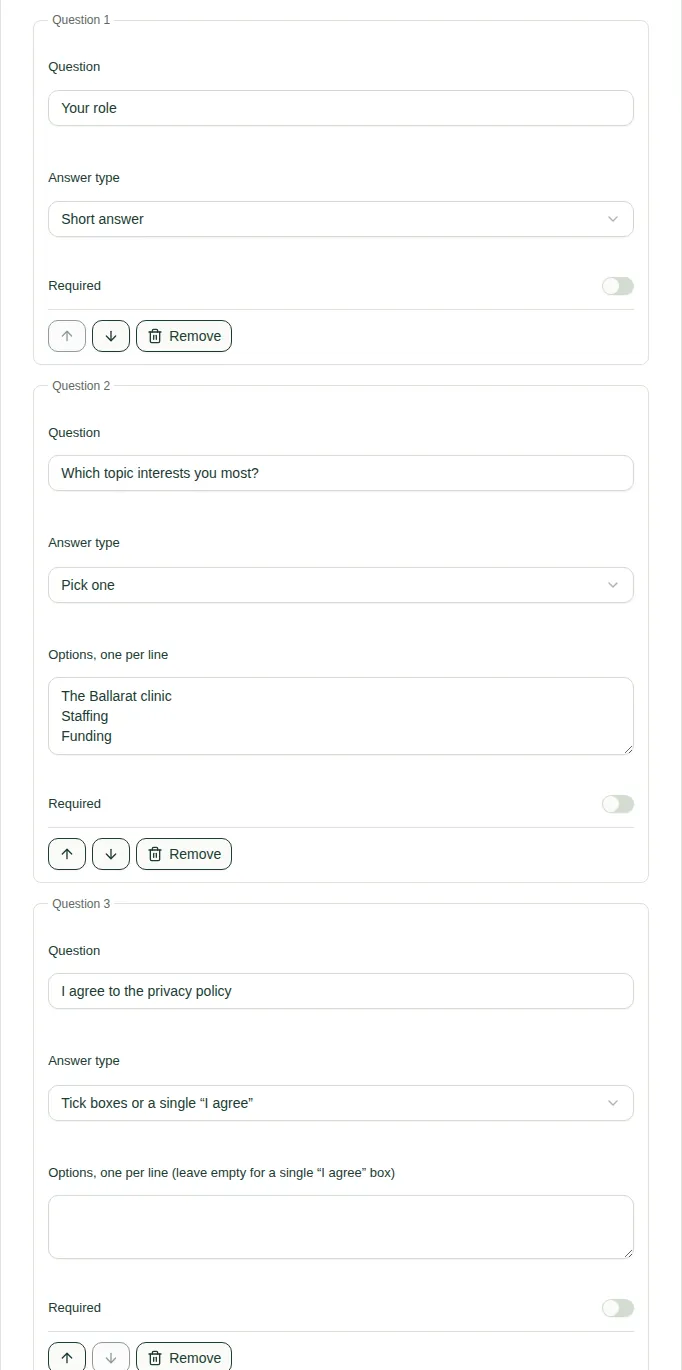
- Add your own questions. Name and email are always asked. Choose Add a question for each new one, up to 12.
- Choose Save sign-up form.
Each question
- Question: what you want to ask.
- Answer type: Short answer, Pick one, or Tick boxes or a single "I agree".
- Options, one per line: for Pick one and Tick boxes, up to 20. Leave it empty for a single "I agree" box.
- Required: switch it on if people must answer.
- Use the arrows to move it up or down, or Remove to delete it.
Good to know
- Reminders go out by themselves, a day before and about an hour before the event.
- People on the invite list get in without registering.
- To see who has signed up, read Manage registrations.
- To see the form as viewers do, read Register for an event.