Add breakout rooms
Add extra rooms to an event, each with its own video, questions and polls, and prompt people to move between them.
A room is an extra stream inside your event, like a workshop that runs at the same time as the main session. This page shows producers how to add rooms and send people to them.
Add a room
- On the producer page, open Breakout rooms, under the event name.
- Type a name in New room name, from 2 to 80 characters.
- Choose Add room.
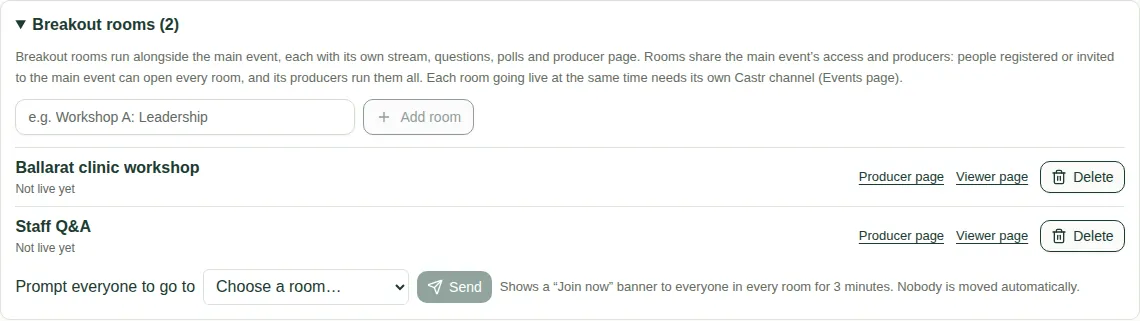
What each room has
- Each room has its own video, questions, polls and producer page.
- It shares the main event's access and producers.
- A new room copies the main event's design, logo, holding slide and settings.
- Each room has Producer page, Viewer page and Delete.
Send everyone to a room
- Next to Prompt everyone to go to, pick a room or The main event.
- Choose Send. Everyone sees a "Join now" banner for 3 minutes.
- Choose Clear prompt to remove it early.
Good to know
- You can have up to 20 rooms.
- Rooms going live at the same time each need their own live channel. Ask your JPC producer to set these up.
- To delete a room, choose Delete and type DELETE to confirm. You can't delete a room while it's live.
- To see how viewers move between rooms, read Switch rooms.