Turn captions on or off
Show or hide captions (subtitles) on the video.
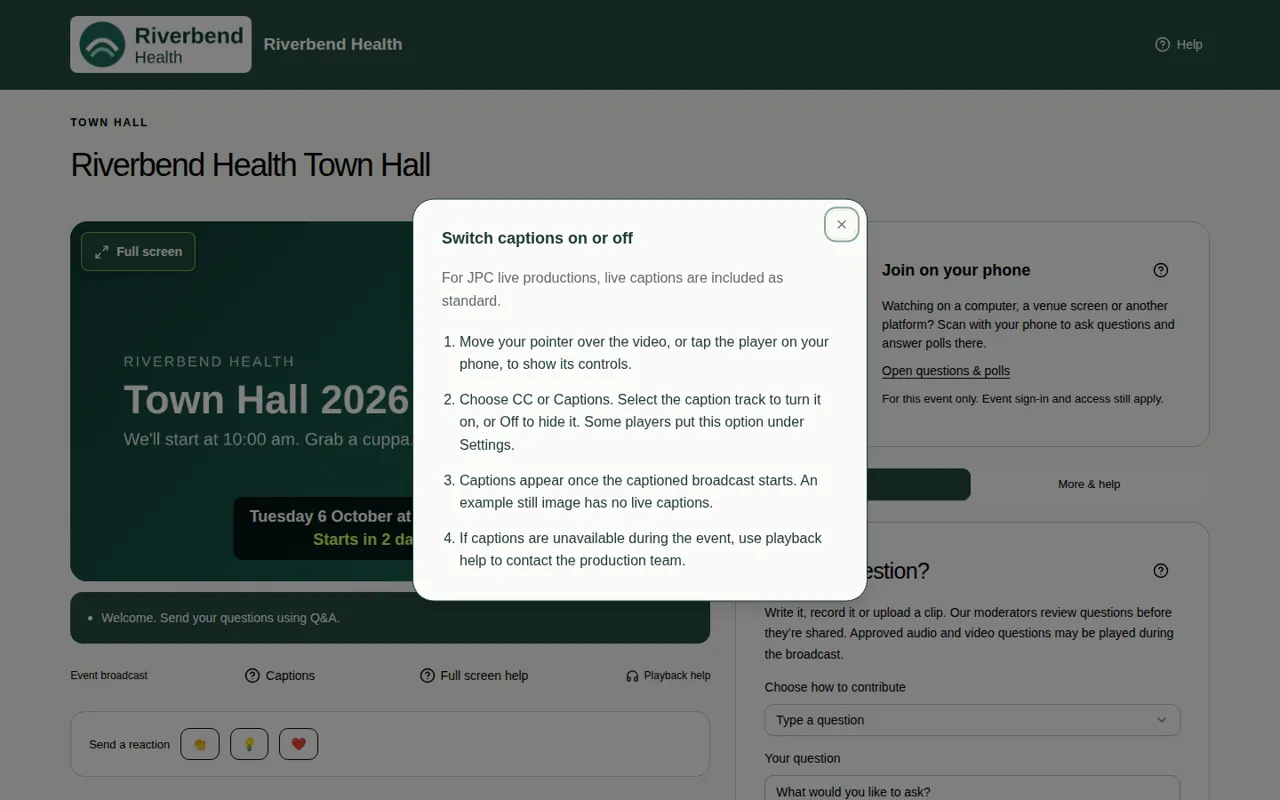
Captions are words on the screen that show what people are saying. Some people call them subtitles. JPC live productions include live captions as standard.
Steps
- Move your mouse over the video, or tap the video on a phone, to show the player controls.
- Choose CC or Captions. On some players, this is under Settings.
- Pick the caption track to turn captions on. Choose Off to turn them off.
Good to know
- The Captions button under the video opens these steps, in case you need them during the event.
- Captions appear once the captioned broadcast starts. The holding slide has no captions.
- Replays can have captions too.
- Not every event has captions. If you can't find them, or they stop during the event, use Playback help to contact the event team. See Ask the event team for help.
- The buttons on the video player belong to the video player company, so they can look a little different from event to event.
- See Accessibility features for other ways the page helps.