Open an event and find your way around
Open the event link and learn what each part of the event page does.
This page is for anyone watching an event. You don't need to install anything. The event works in any up-to-date web browser on a computer, tablet or phone.
Steps
- Open the event link from your invitation, an email or the organiser's website. It looks like
livestreamvideo.com.au/events/your-event-name. Older links that start withevent.livestreamvideo.com.austill work: they take you to the new address. - What happens next depends on the event. Some events let you watch straight away. Others ask you to type your name, sign in or register first. See Join with just your name, Sign in with an email code or Register for an event.
- If the event hasn't started, you see when it starts in your own time zone. See Before the event starts.
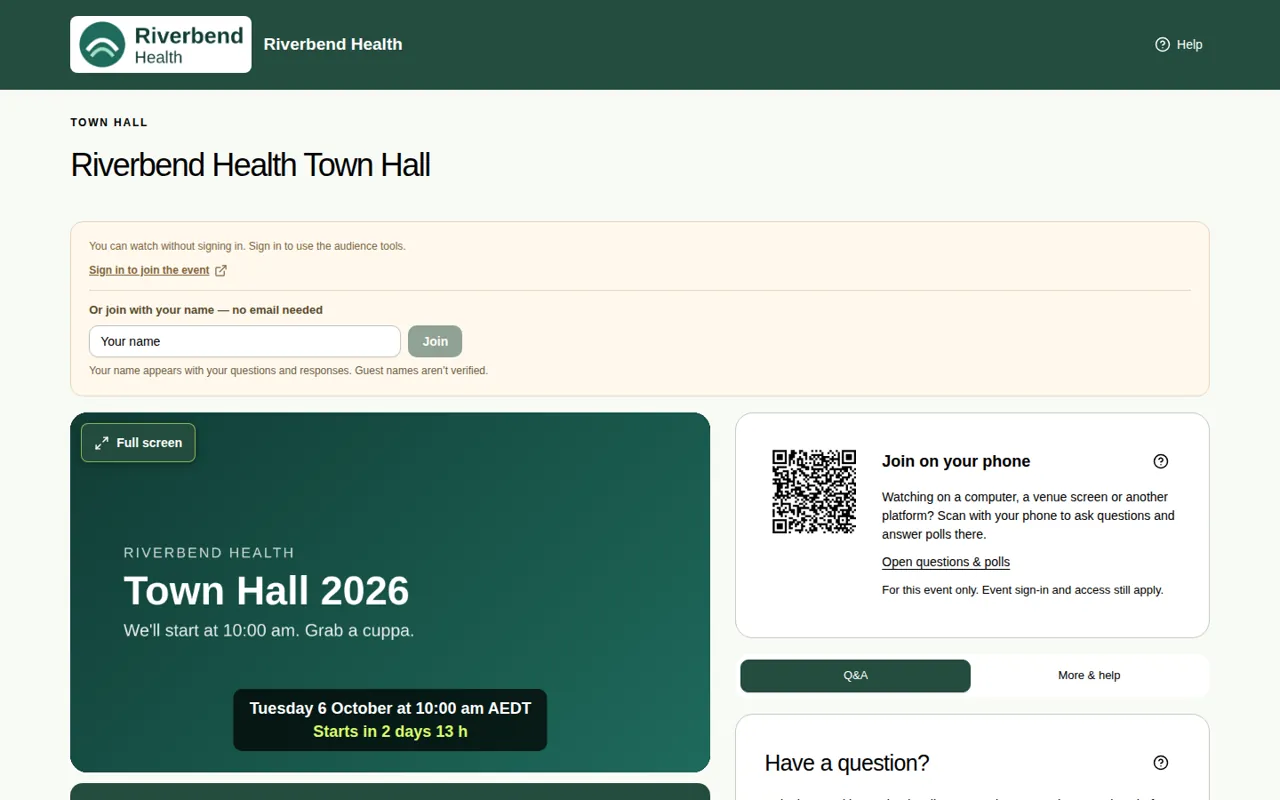
What's on the page
From top to bottom, the event page has:
- The top bar, with the organiser's logo and name, and a Help button. Help opens a short guide to the page.
- The kind of event, such as TOWN HALL or ANNUAL GENERAL MEETING, then the event's name.
- Room tabs, if the event has more than one room. See Move between rooms.
- The video player. Before the event starts, it shows the organiser's holding slide (the picture you see before the show).
- The message under the video, such as "Welcome. Send your questions using Q&A." The event team can change it at any time.
- Three help buttons: Captions, Full screen help and Playback help.
- Send a reaction: 👏, 💡 and ❤️. See Send a reaction.
- Join the conversation, with Polls & activities and Word clouds. See Find new polls and activities.
- Information tabs: About, Resources, Replay & transcript and Feedback. See Use the information tabs.
- Join on your phone, a QR code. See Take part on your phone.
- Two tabs on the right: Q&A for asking questions, and More & help for asking the event team for help.
Good to know
- The A, A+ and A++ buttons at the top right make the text bigger. See Make the text bigger.
- Some events don't use every part. For example, the organiser may switch off reactions or the QR code.
- New to some of these words? See Words we use.