Watch in full screen
Make the video fill your screen and still ask questions, answer polls and add words.
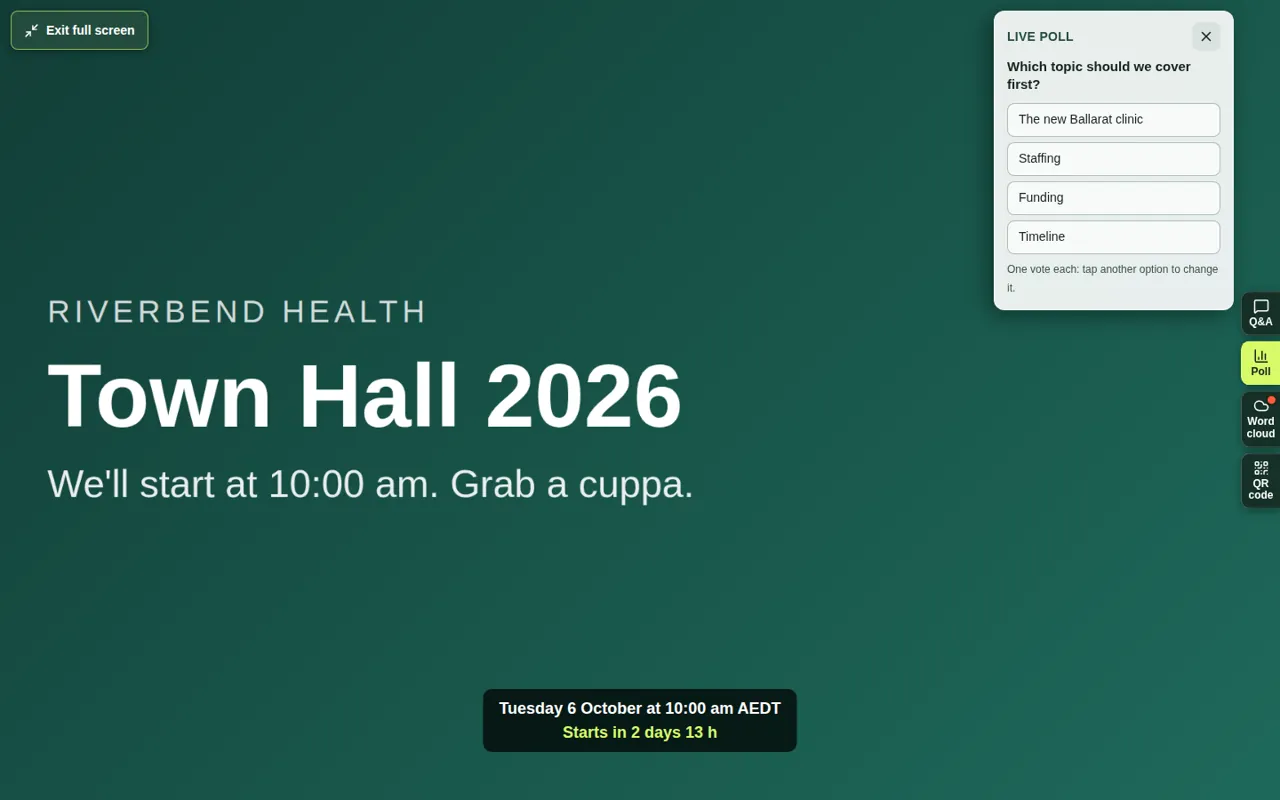
Full screen makes the video fill your whole screen. Small tabs on the right let you take part without leaving full screen.
Steps
- Choose Full screen at the top left of the video. The video fills your screen.
- Use the small tabs on the right:
- Q&A: type a question. Press Enter to send, or Shift and Enter for a new line.
- Poll: answer the poll that's open. You can change your vote while it's open by tapping another option. In a quiz, your first answer is final.
- Word cloud: add a word. Sending again replaces your word.
- QR code: scan it to take part on your phone instead.
- To close a tab, choose the × at the top of it, or press Escape. The video keeps playing behind it.
- To leave full screen, choose Exit full screen or press Escape.
Good to know
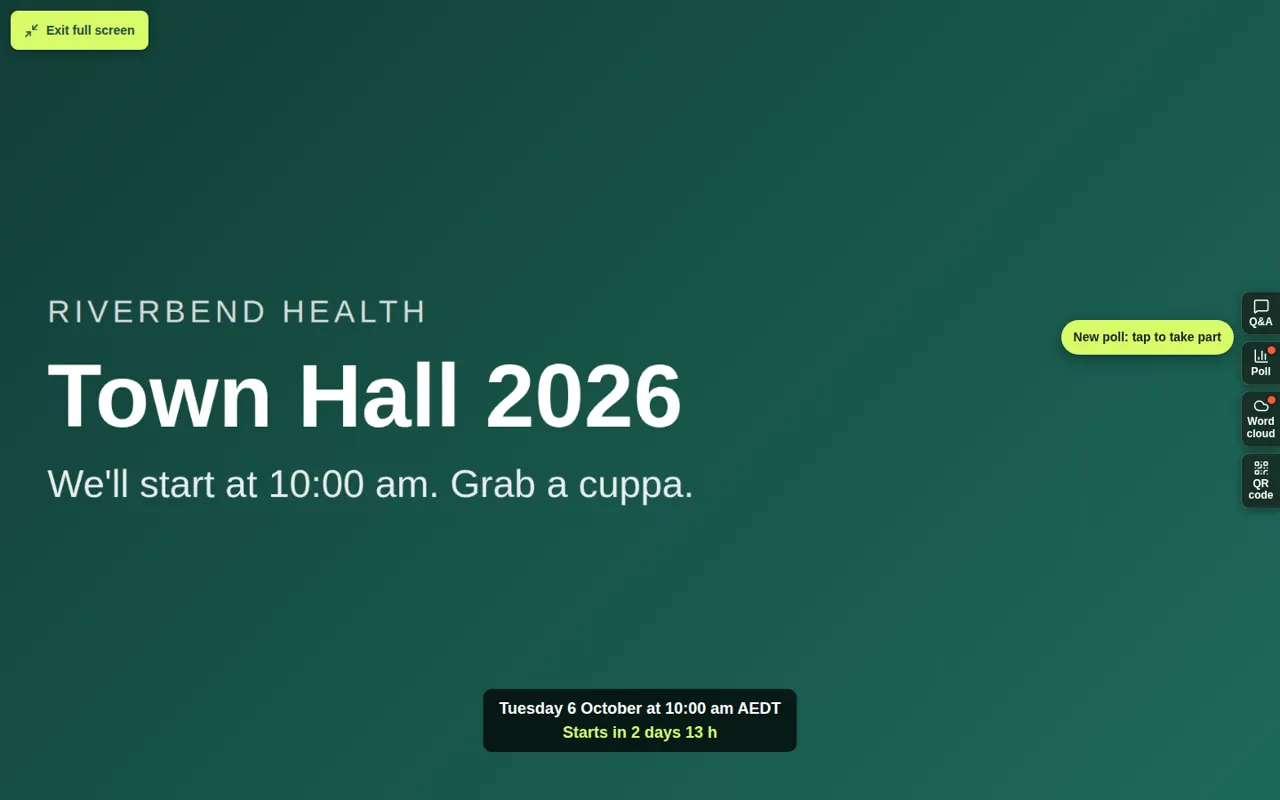
- When a new poll or word cloud opens, its tab gets a red dot and a message pops up, such as "New poll: tap to take part".
- After you send something, a small message tells you it worked, such as "Sent for moderation", "Question published", "Vote received" or "Added to the word cloud".
- The Full screen button fades after 5 seconds. Move your mouse, tap or press a key to bring it back.
- Use the event page's Full screen button, not the one inside the video player. The player's own button doesn't show the tabs.
- If you joined with just your name, the Q&A tab asks for your name the first time you send something.
- Rankings, open text questions and surveys can't be answered in full screen. Leave full screen to answer those. See Which activities work in full screen.