Get started with the formal meeting tools
What the formal meeting tools do, how to get them, and how to open the officers' page.
This page is for the people who run a formal meeting, such as an AGM (annual general meeting). That means the secretary, the chair, the returning officer, check-in staff and the people who look after questions.
The formal meeting tools give you a member register, resolutions, proxies, check-in at the venue, quorum, secret or recorded votes, a question register and records for your minutes.
Getting the tools
The formal meeting tools are a paid add-on. JPC switches them on for each event. Ask JPC to switch on the formal meeting tools for your event.
Open the officers' page
- Open your event's producer page and choose Formal meeting: voting, questions, check-in and records. Or go to your event's address with
/agmon the end. - Sign in with your email code. Use the email address you were added with as an officer.
- Check the top of the page. It shows the roles you have, for example "Secretary" or "Chair".
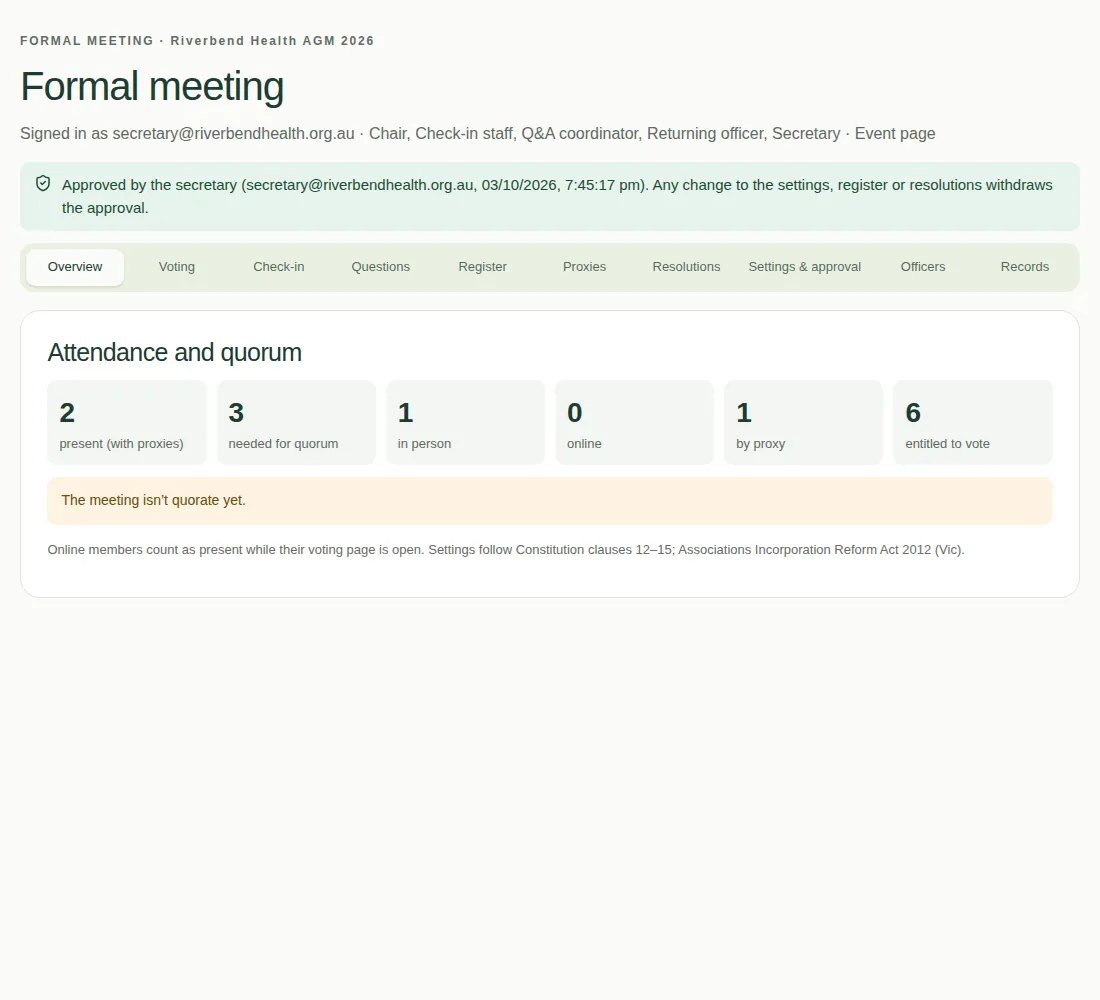
The approval banner
A banner near the top tells you if the meeting is ready:
- "Not approved yet." The chair can't open voting until the secretary approves the settings, register and resolutions.
- "Approved by the secretary." Any change to the settings, register or resolutions takes the approval away.
Setting up, step by step
- Name the officers.
- Choose the meeting settings.
- Load the member register.
- Add resolutions.
- Record proxies.
- Approve the meeting and email voting links.
- Open and close voting.
See Who does what to find out which steps are yours.