Open and close voting
The chair opens and closes voting on each resolution on the Voting tab, and sees the results.
The chair opens and closes voting on each resolution, on the Voting tab. The meeting must be approved first. See Approve the meeting.
Steps
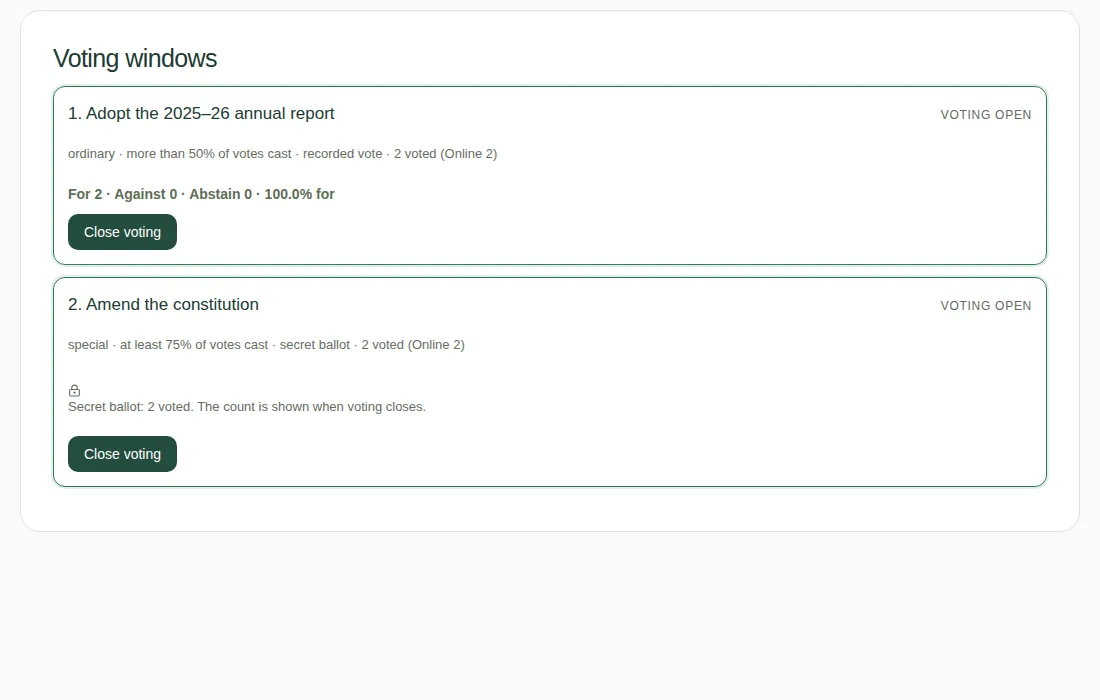
- Find the resolution. It says Not open, Voting open or Closed.
- Choose Open voting. Every voter's voting panel updates straight away.
- Watch how many have voted. The count is split into Online, In person, By proxy and Paper.
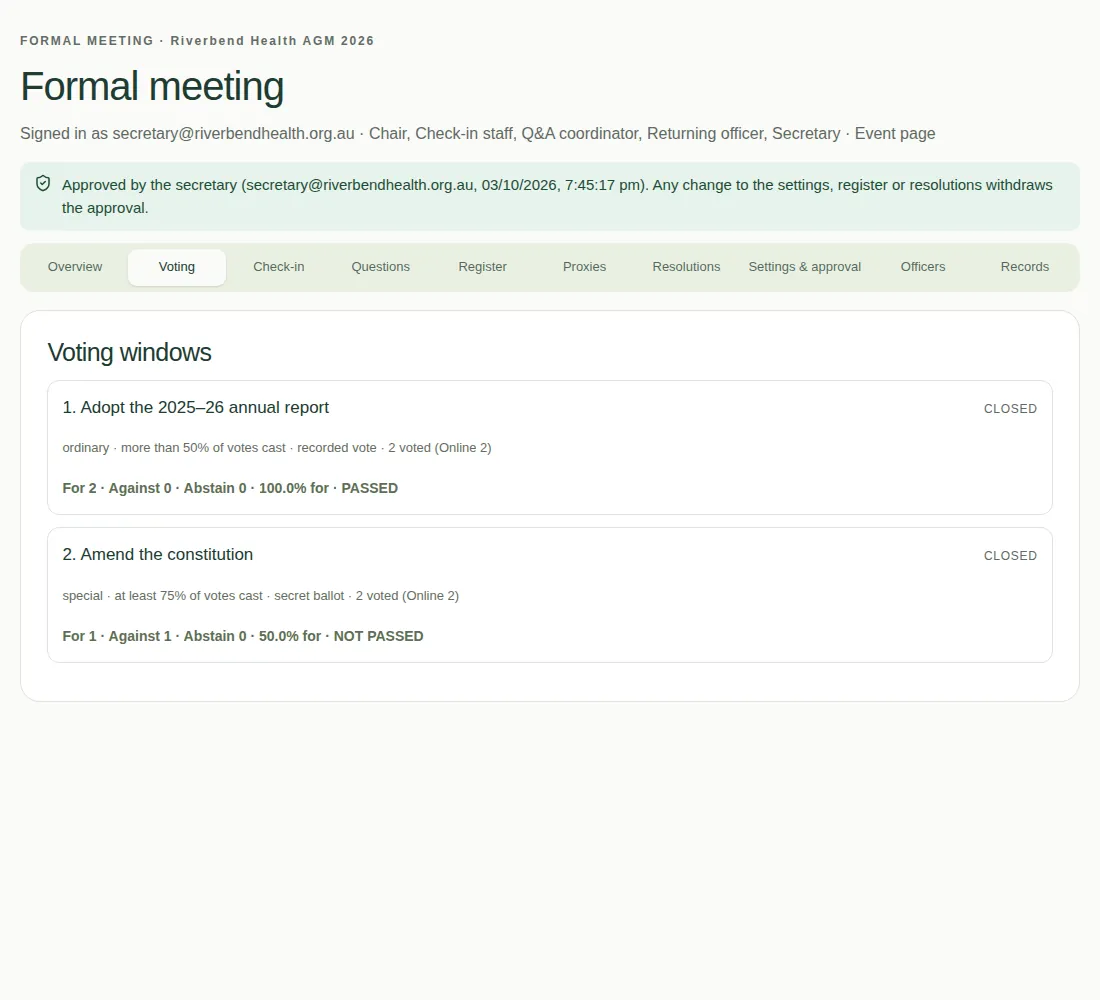
- When it's time, choose Close voting and confirm. Nobody can vote after that.
Results
- For recorded votes, the results show as people vote.
- For secret ballots, the count stays hidden until voting closes.
- The result line looks like "For 2 · Against 0 · Abstain 0 · 100.0% for · PASSED".
- A resolution passes when the percentage For is more than the pass mark. For special resolutions, it passes at the pass mark or above.
Good to know
- If fewer than 3 people voted in a secret ballot, closing warns you that the result could show how they voted.
- Only the chair can open or close voting. The control room can't.
- If you used paper ballots, see Enter paper ballot counts.
- For what members see, see Cast your vote and See the results.