Record proxies
Enter each proxy form you receive, then accept, reject or revoke it.
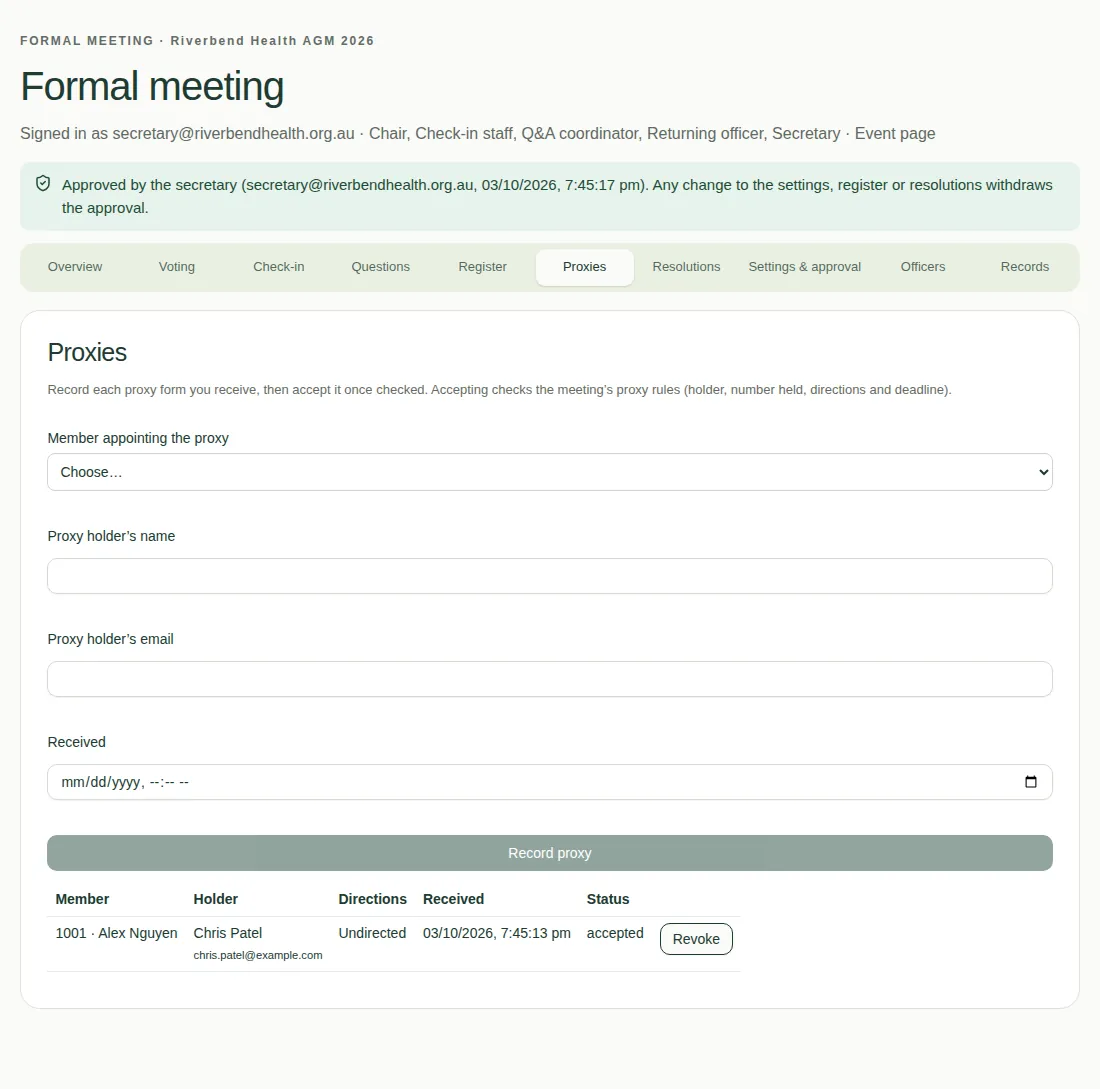
A proxy is someone allowed to vote for another member. When a proxy form arrives, the secretary records it on the Proxies tab.
Steps
- Choose the Member appointing the proxy.
- Type the Proxy holder’s name and Proxy holder’s email.
- Set when it was Received.
- For each resolution, choose a direction: Holder decides, For, Against or Abstain.
- Choose Record proxy. It starts as pending.
- Choose Accept. The app checks the proxy against your meeting's proxy rules, such as the deadline and how many proxies one person can hold. If it breaks a rule, a message tells you why, for example "Proxies had to be received 48 hours before the meeting."
Reject or revoke a proxy
- Choose Reject to turn down a pending proxy. Give a reason.
- Choose Revoke to cancel an accepted proxy. Give a reason.
Good to know
- The proxy rules come from your meeting settings.
- Accepted proxy holders get their own voting link when you email voting links.
- Proxy holders at the venue can be checked in. See Check members in at the venue.
- For what proxy holders see, see Vote as someone's proxy.