Run requests to speak live
See who is asking to speak, put them in a ready queue and invite them backstage.
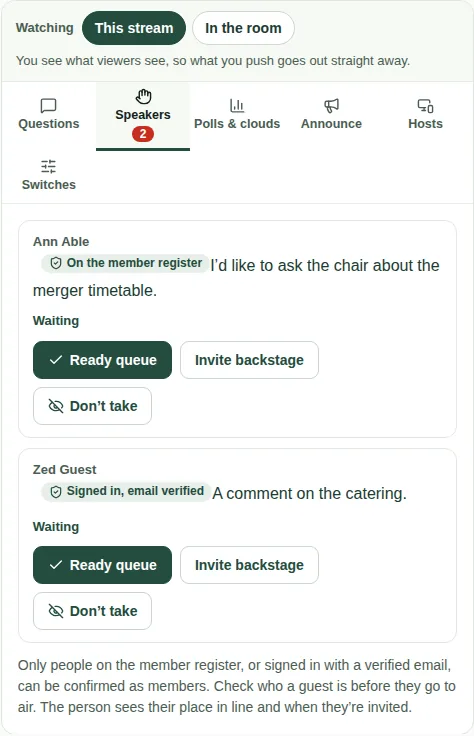
When Allow requests to speak live is on, viewers can ask to speak. Their requests come to the Speakers tab. The red number is how many are waiting.
Who is asking
Each request shows the person's name, what they want to raise, and who they are:
- On the member register: their email is on the meeting's member register.
- Signed in, email verified: they signed in with an email code or a registration link, but aren't on the register.
- Guest, name only (unverified): they joined with just a name. Check who they are before they go to air.
Steps
- Choose Ready queue to line them up. They see "You're next" or their place in line.
- Choose Invite backstage when it's nearly their turn. They see You're invited backstage with a Join backstage button for the backstage meeting link from Event setup. The production team checks their sound and picture there, and brings them on when the chair calls them.
- Choose Done once they've spoken.
- Choose Don't take for a request you won't take. They see "Not taken this time".
Good to know
- Without a backstage link, you can still see requests and line them up, but not invite anyone. Add the link in Event setup.
- Back to waiting and Back to ready undo a step.
- The participation report for a formal meeting counts requests, who spoke and who wasn't taken.